Add Custom Columns & Stages in Tixio Projects (List View)
Tixio lets you personalize your project layout by adding custom columns to track exactly what matters most to your workflow—whether it's priority, tags, effort estimates, or approval status. You can also define custom stages to reflect how work progresses in your own unique process.
Custom Columns:
These are additional fields you create in your task list to track specific attributes like “Client Name,” “Deadline,” “Assigned Team,” or any other data relevant to your project.
Stages:
These represent the status of a task (e.g., Backlog, In Review, Approved) and help categorize progress through your process.
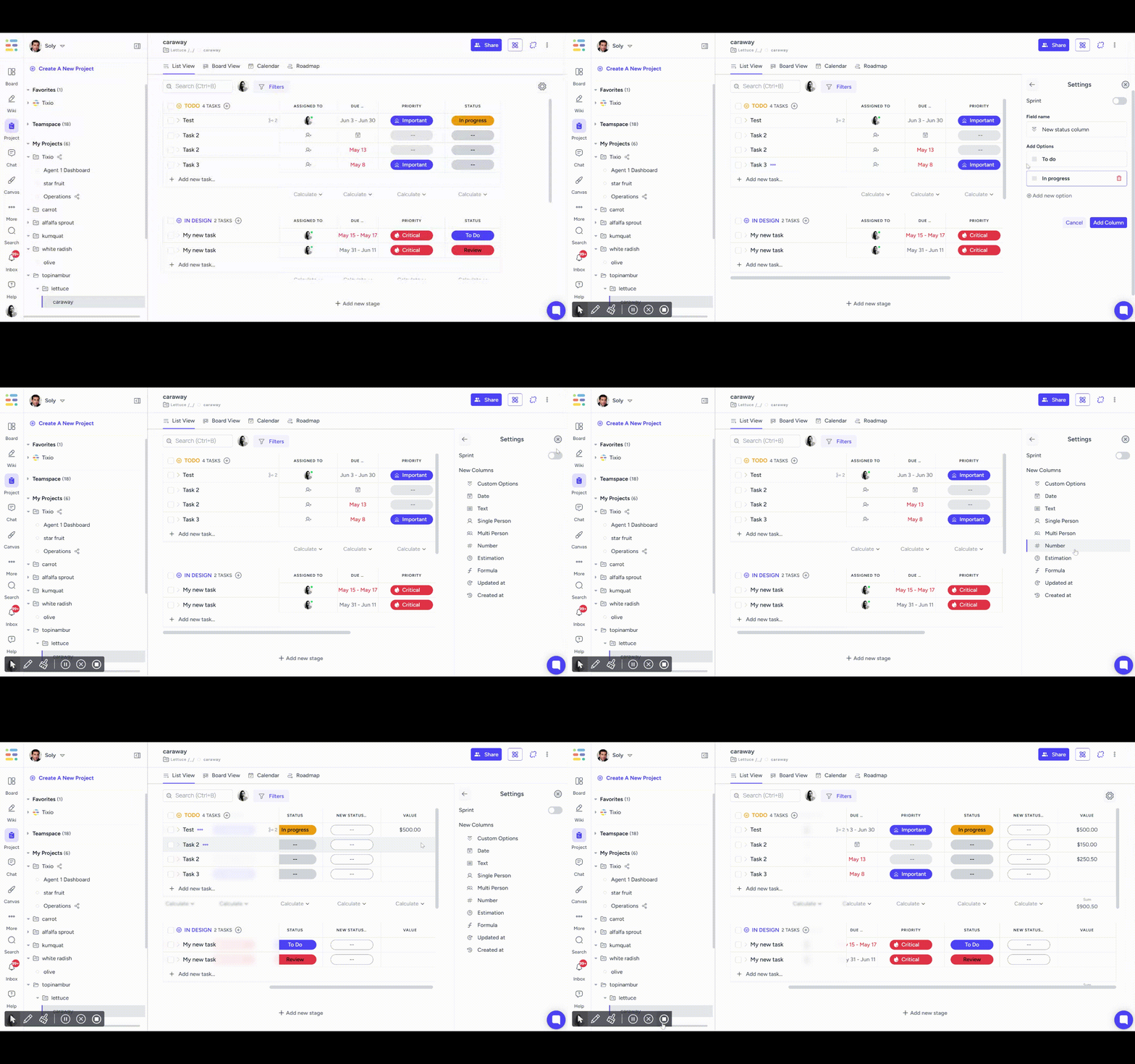
Go to the Projects module from the workspace.
Select the project you want to modify.
In the list view header, click ⚙settings button (usually found on the top right end of the table).
Choose the column type (Text, Dropdown, Date, Number, etc.).
Name your column (e.g., “Reviewer,” “Estimated Hours”).
Click Save to apply.
Pro Tip: You can reorder, rename, or hide columns any time to keep your layout clean.
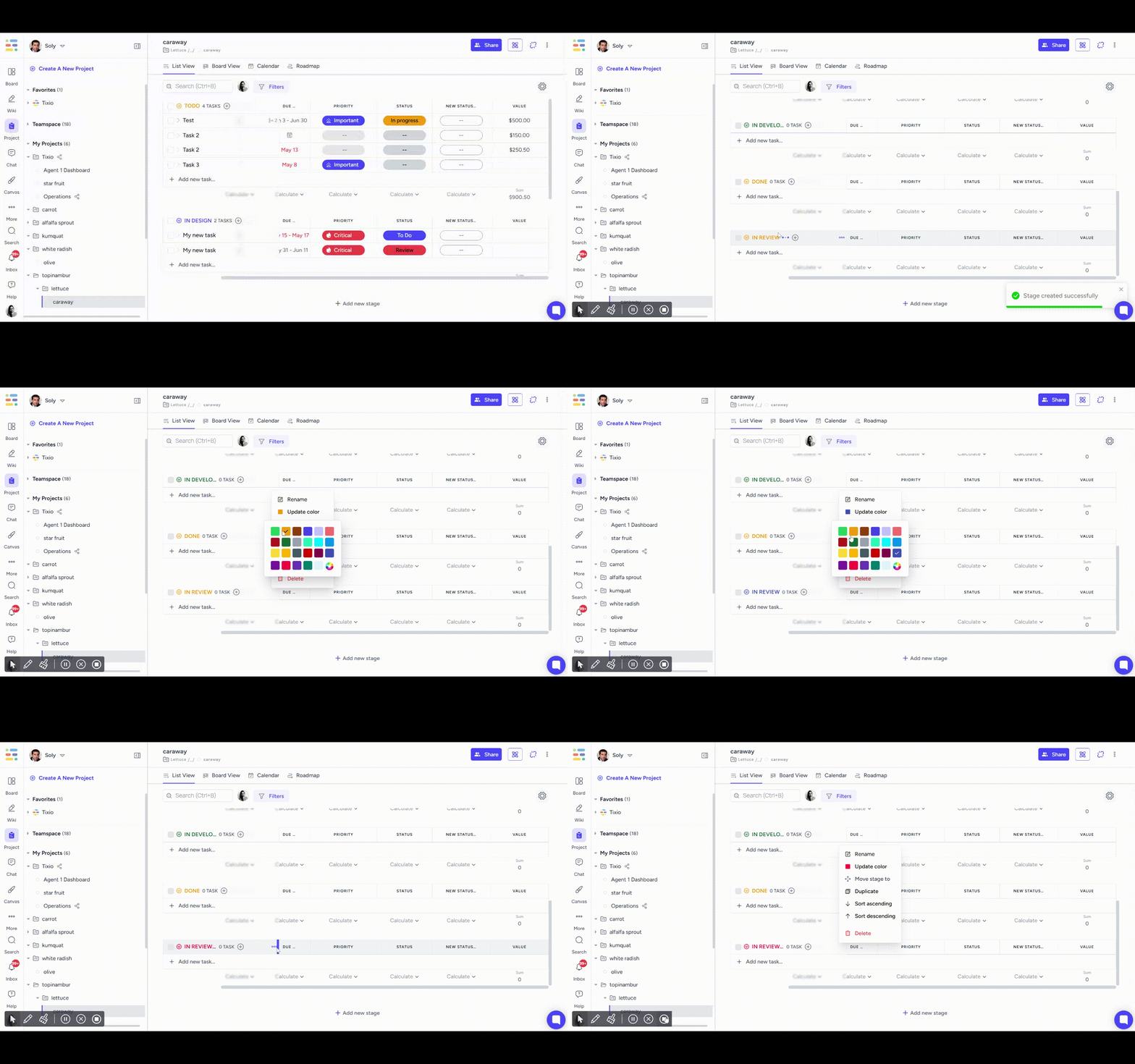
Inside the project, click on any task’s stage/status field.
Click three dot menu next to the stage name
Add new stages like “Blocked,” “QA,” or “Needs Feedback.”
Reorder stages to reflect your process flow.
Assign colors to visually differentiate them.
Once saved, all tasks will now reflect the updated stage options.
Match your team's process
Track custom data
Filter and sort tasks easily
Create a clear workflow for everyone