

In this article, we will show you how to setup and connect your Gmail with Tixio CRM and send / schedule emails for leads.
Connect Your Email Account
Go to Connect Email from the sidebar
Click on the add new button from top right and connect to your Gmail account.
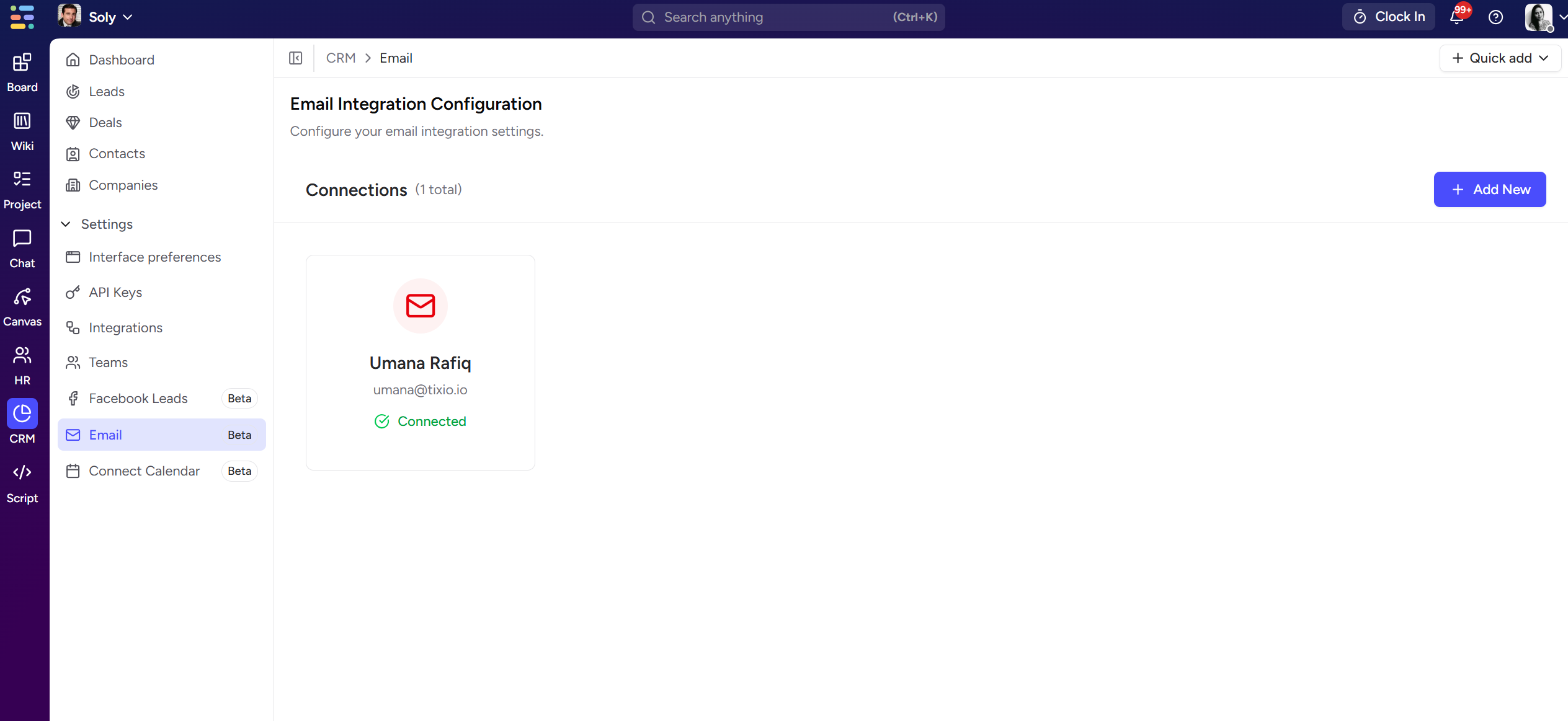
Now you can see your email account connected.
Note: Members can connect their respective emails, based on the lead ownership, the relevant member can send the emails. Your connected emails won’t be seen by other members in CRM.
Send Email
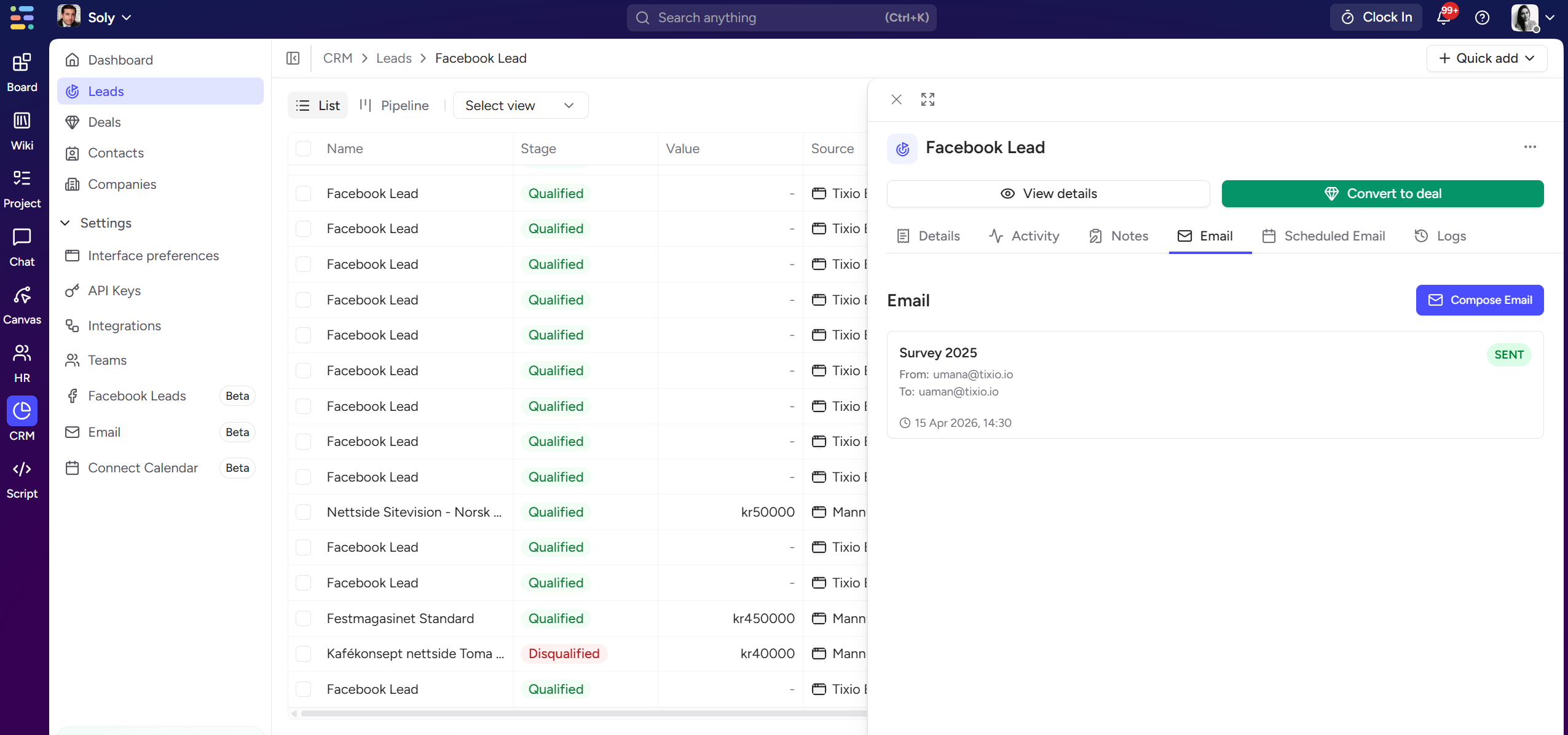
Select a lead / deal
Open the details page and go to the Email tab
Here you’ll be able to see all the emails you’ve sent so far to this lead from Tixio CRM
Click on Compose Mail button
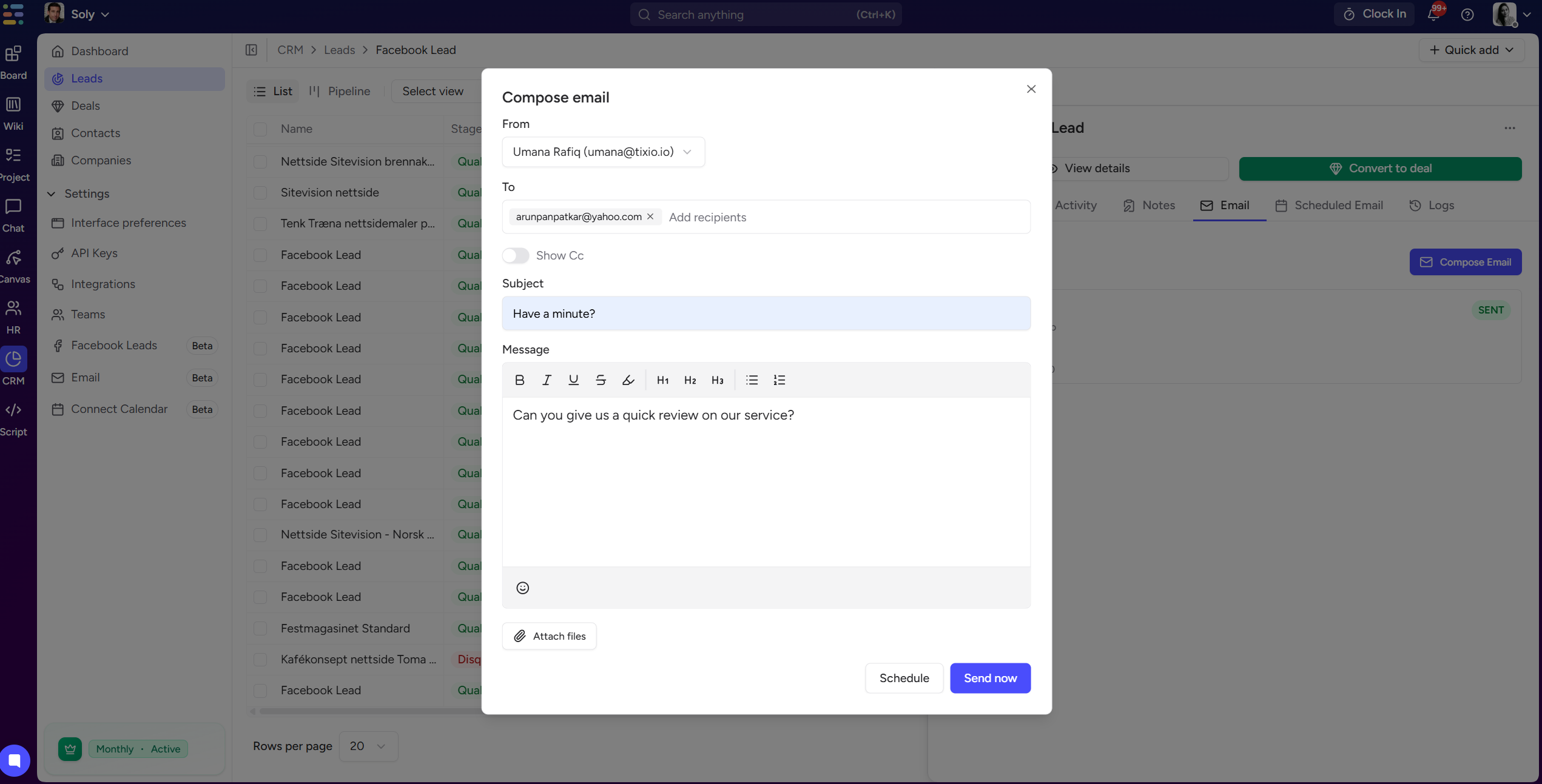
An email editor will open in pop-up
Here you can setup your email subject, recipient, email body, attach files and send / schedule the email.
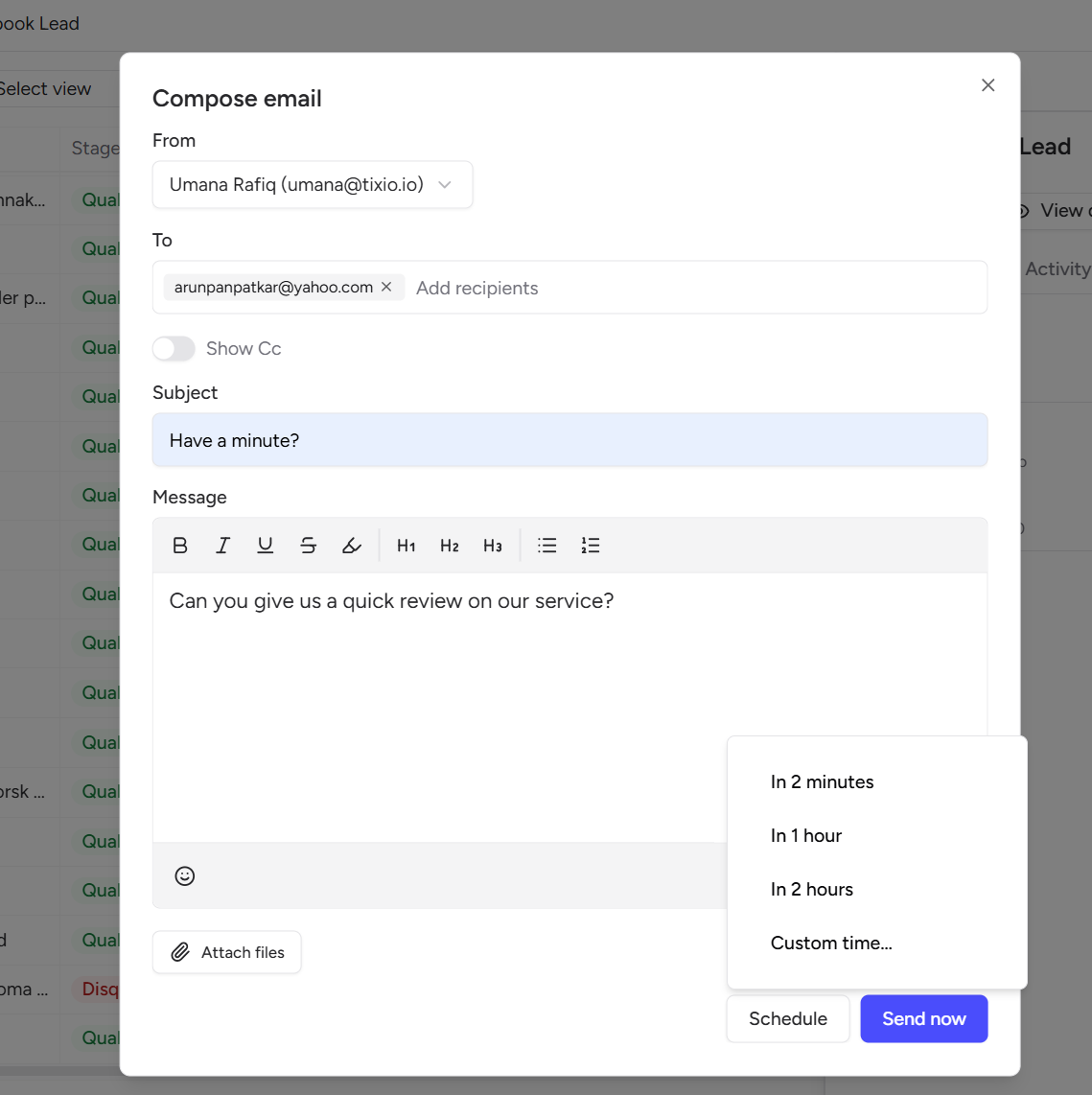
7. You can also schedule an email as a follow-up or sending in future times by clicking on the schedule button. It’s also possible to setup a custom date and time for sending emails.
8. You can also discard/ keep the email as draft for later use.