Tixio Script enables smart automation and information sharing on the web using customizable scripts. It lets you share information, links, documents, and announcements that automatically appear on web pages or internal pages - without manual posting.
Note: To use this feature please make sure you download Tixio Lite Chrome Extension https://chromewebstore.google.com/detail/tixio-extension/bkeneiekcedkhfnbcfhliembblmjghjh
Use cases:
Share useful resources and documents anywhere online
Publish interactive links and content automatically
Show announcements to website visitors or team members
Support onboarding and announcements for employees or users
Step 1. Go to the Script Feature
Log into Tixio and open Tixio Script from the product menu.
Step 2. Create a New Script
Click Create Script and choose the content you want to share:
Links
Documents
Announcements
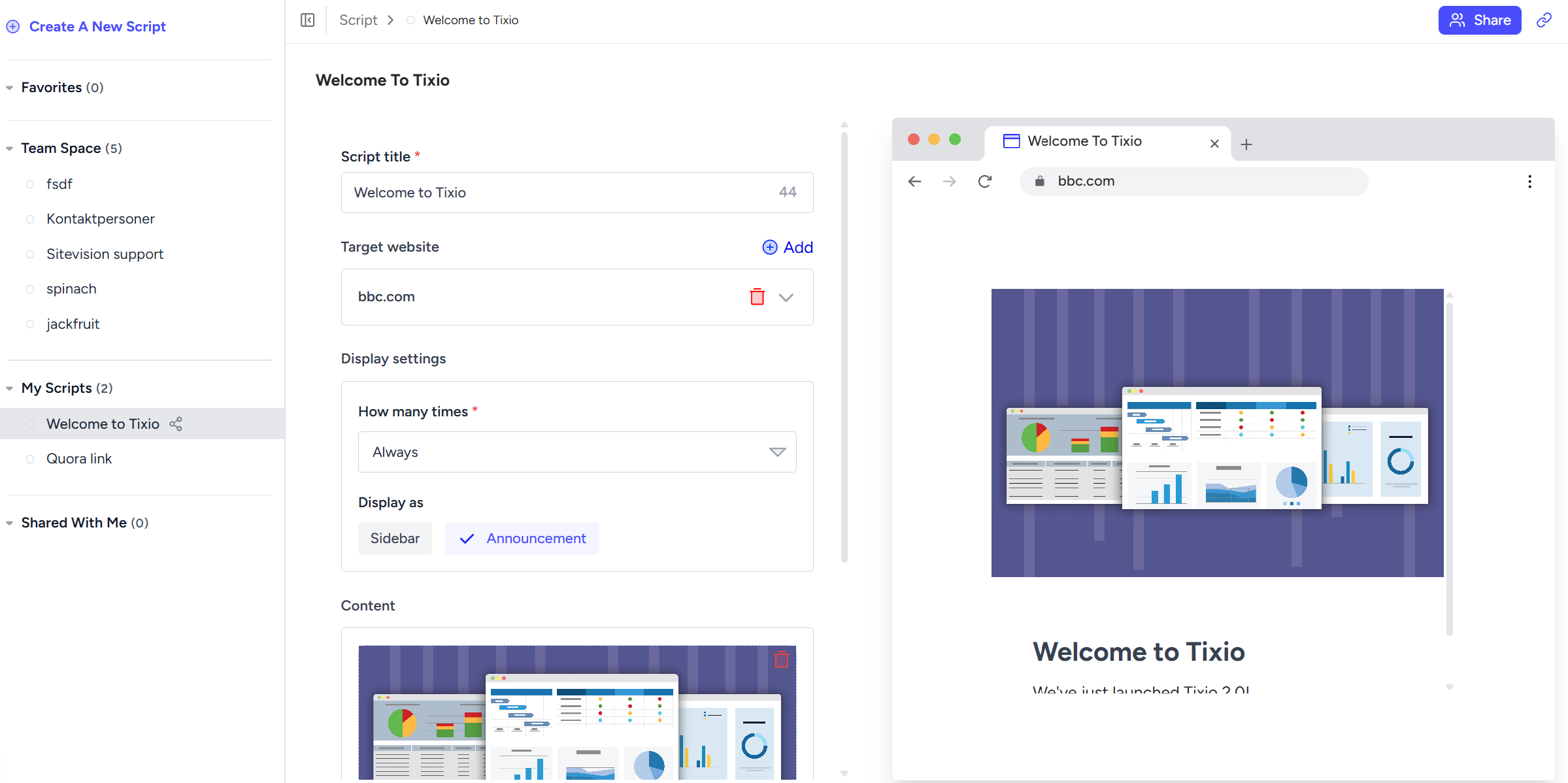
Step 3. Configure script
Title: Add a title to show up on webpage
Target website: Set where and when the script should show up (e.g., website URL)
Display settings: Set frequency of script appearance
Display type: You can choose where to show this script, either as an announcement or a sidebar pop up link.
The display on the right will show you how it will appear on the webpage.
Step 4. Save & Activate
Save the script and activate it. It will now automatically display according to your settings.

✅ Plan your audience first
Decide whether a script is for visitors, members, or internal users before configuring its behavior.
✅ Keep links relevant
Group related links together so scripts deliver valuable content.
✅ Use announcements for major updates
Scripts are great for high-visibility content like product releases, alerts, or policy changes.