Tixio CRM now supports direct integration with Facebook Lead Ads, allowing you to automatically capture lead submissions from Facebook forms and sync them into your CRM as Leads or Deals—instantly and reliably.
This guide walks you through how to connect Facebook with Tixio CRM and begin syncing leads in real time.
Before you begin, ensure you have:
A Tixio CRM account
A Facebook Page with active Lead Ads
Access to Facebook Business Manager
A published Lead Ads Form
Your Tixio API Key
Log into your Tixio account.
Navigate to:
Tixio CRM→ Settings→ Facebook Leads
Click Add Facebook Page.
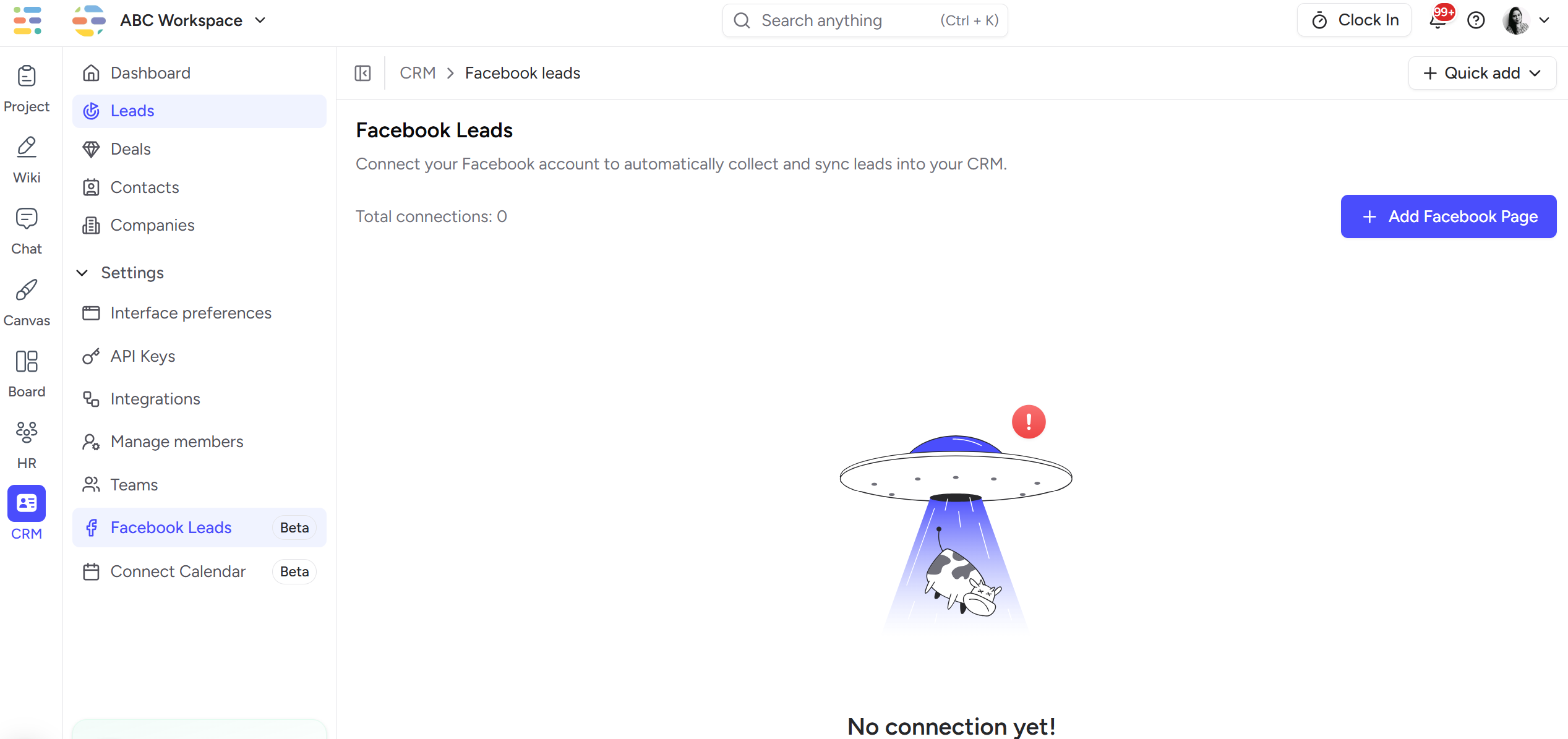
You will be redirected to Facebook for authentication.
Log in with the Facebook account that manages your Business Page.
Allow the requested permissions:
Manage leads
Access your Facebook Page
View and manage forms
✔ These permissions are required for Tixio to pull lead submissions.
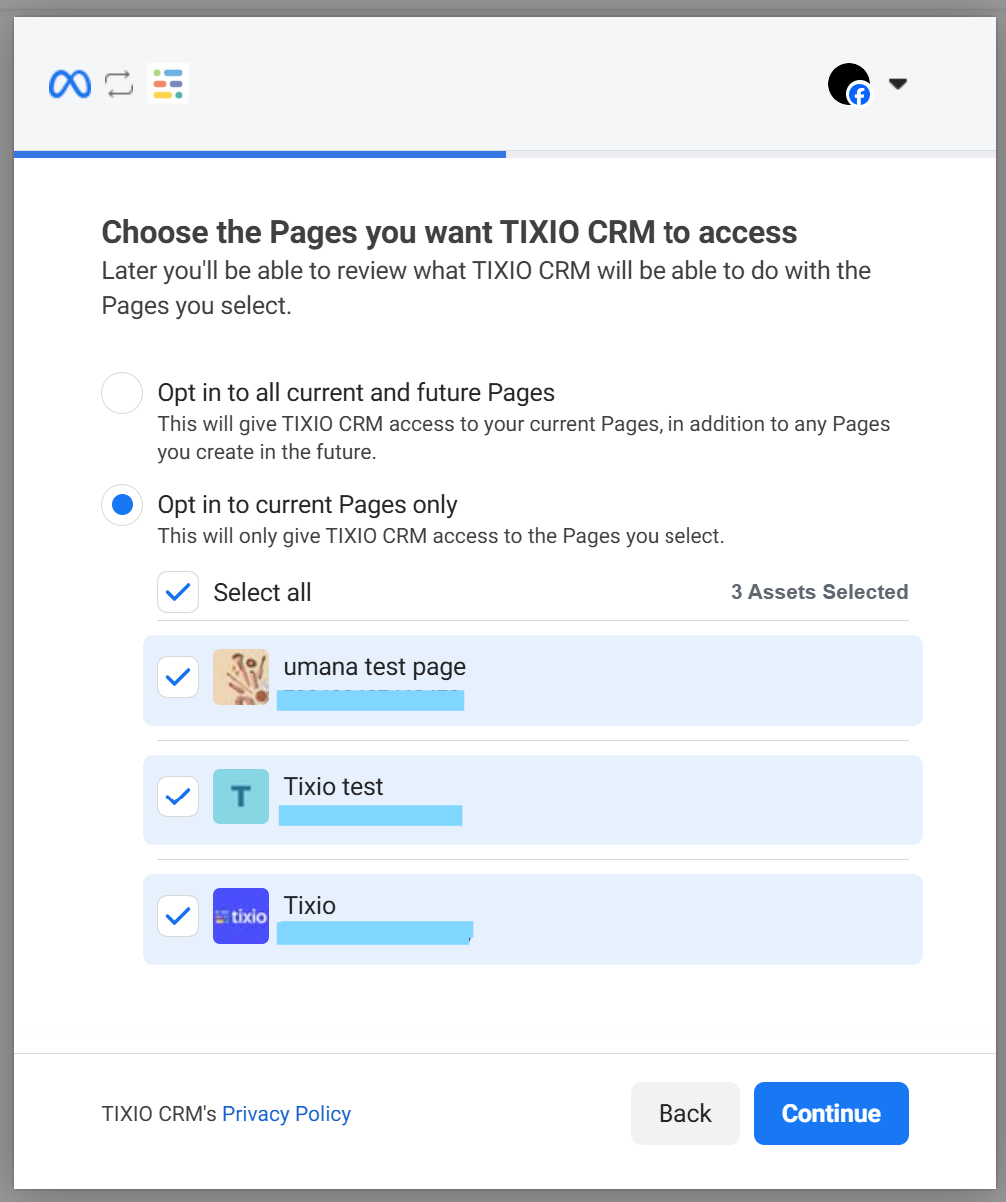
After connecting, you will see a list of Facebook Pages tied to your account.
Choose the Page that runs your Lead Ads.
Click Next.
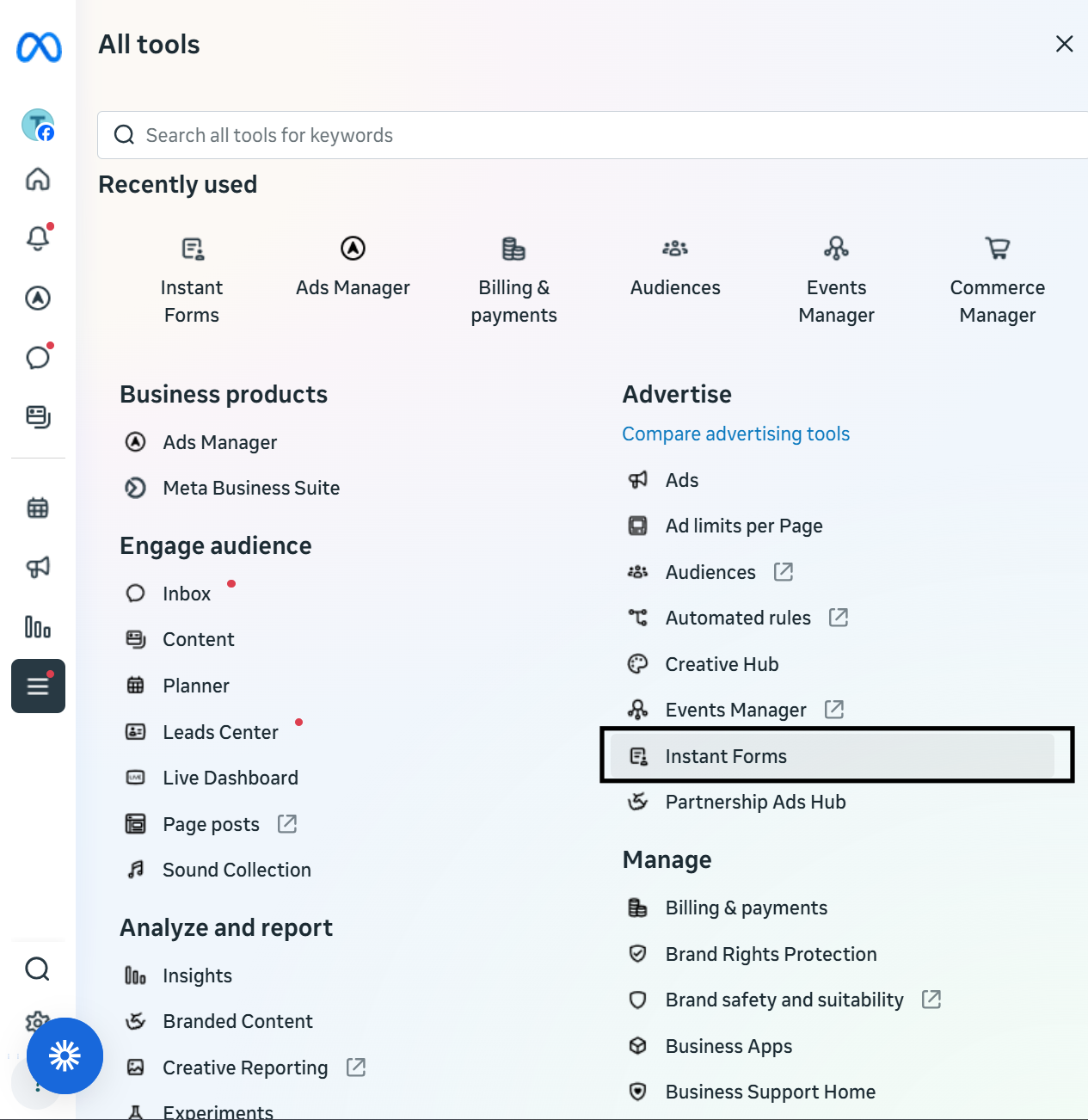
Go to Facebook Business Manager and open Instant Forms from All Tools
Create forms from your page that will be automatically create leads on Tixio CRM for every submission.
ℹ You can connect multiple forms, and each will sync leads independently.
Your Facebook leads will now automatically appear in:
👉 Tixio CRM → Leads
(with full details and timestamps)
You no longer need to export CSV files or manually enter data—Tixio handles everything in real time.
If leads are not syncing:
Ensure you selected the correct Facebook Page
Verify your Lead Form is published
Check Facebook permissions in Business Integrations
Need help? Contact our support team anytime.