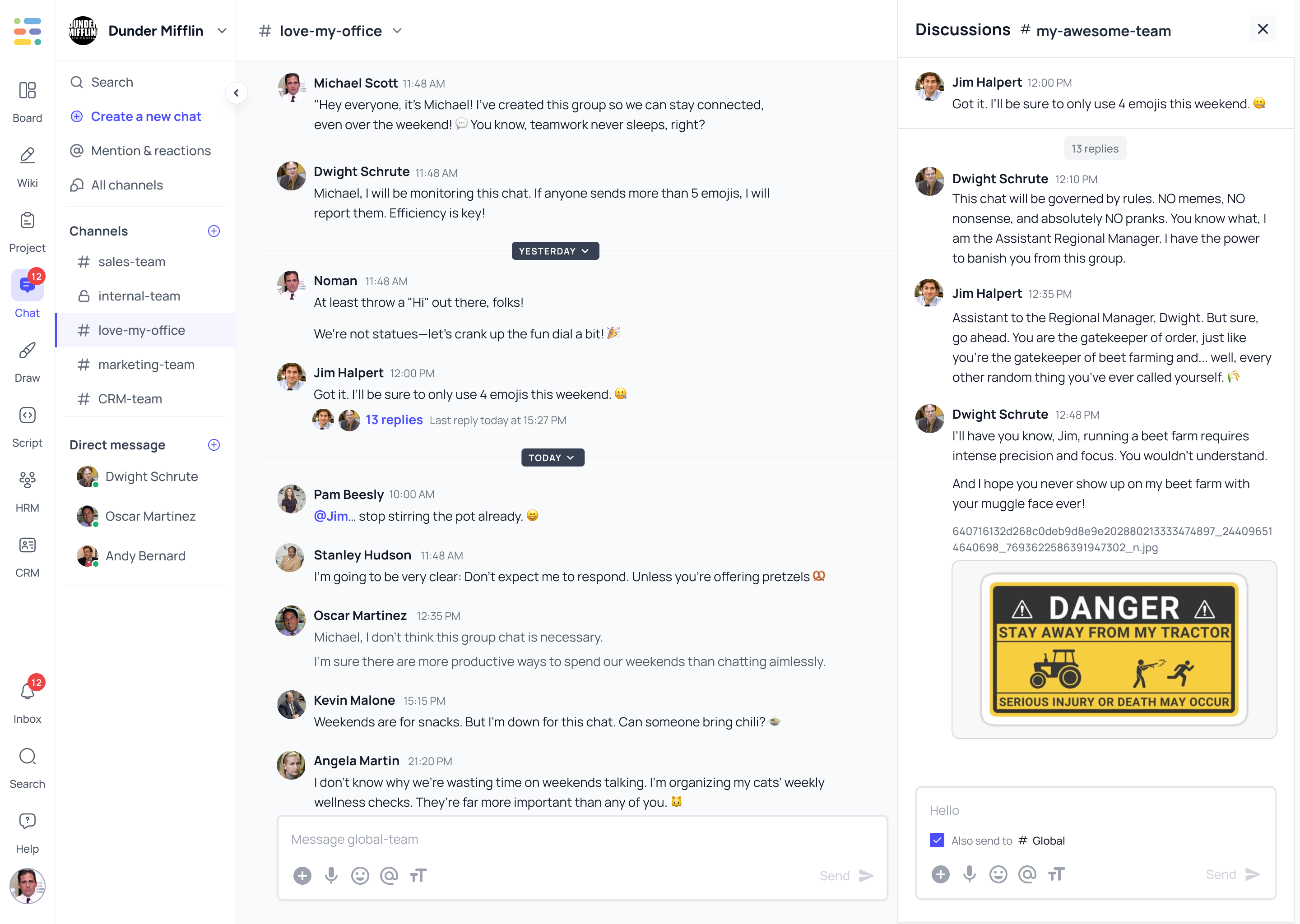
Why use another tool just for conversations? Use Tixio chat to chat with teams at the same place you work to reduce the stress of switching and losing focus. We've brought you a simple chatting tool with minimal features but the potential for more!
Invite members to the workspace first
Go to chat section to start chatting in the workspace
Add channels and conversations
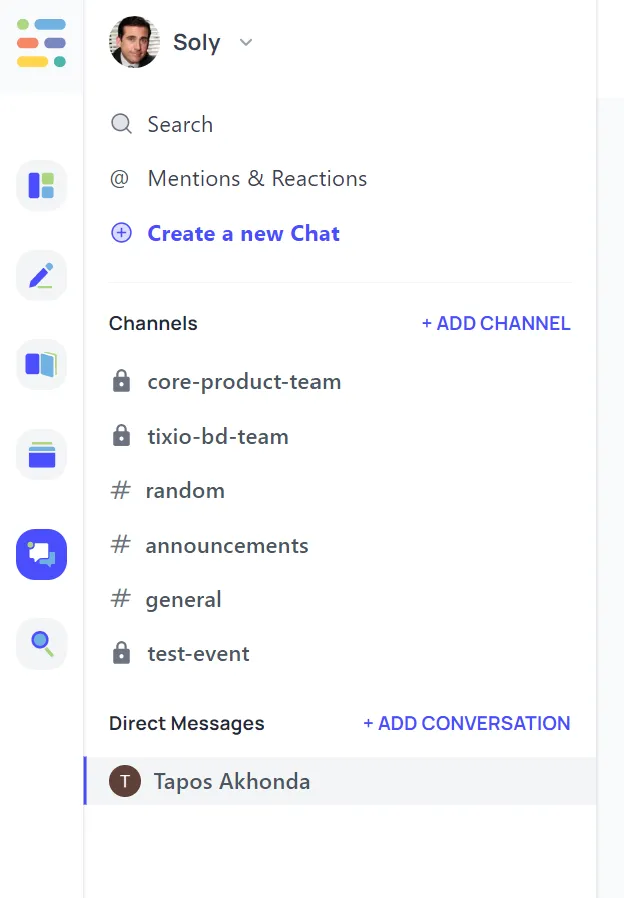
Click to + Add conversation to start a direct conversation with anyone. Your conversations will be private and no one in the workspace can access it, not even the workspace owner.
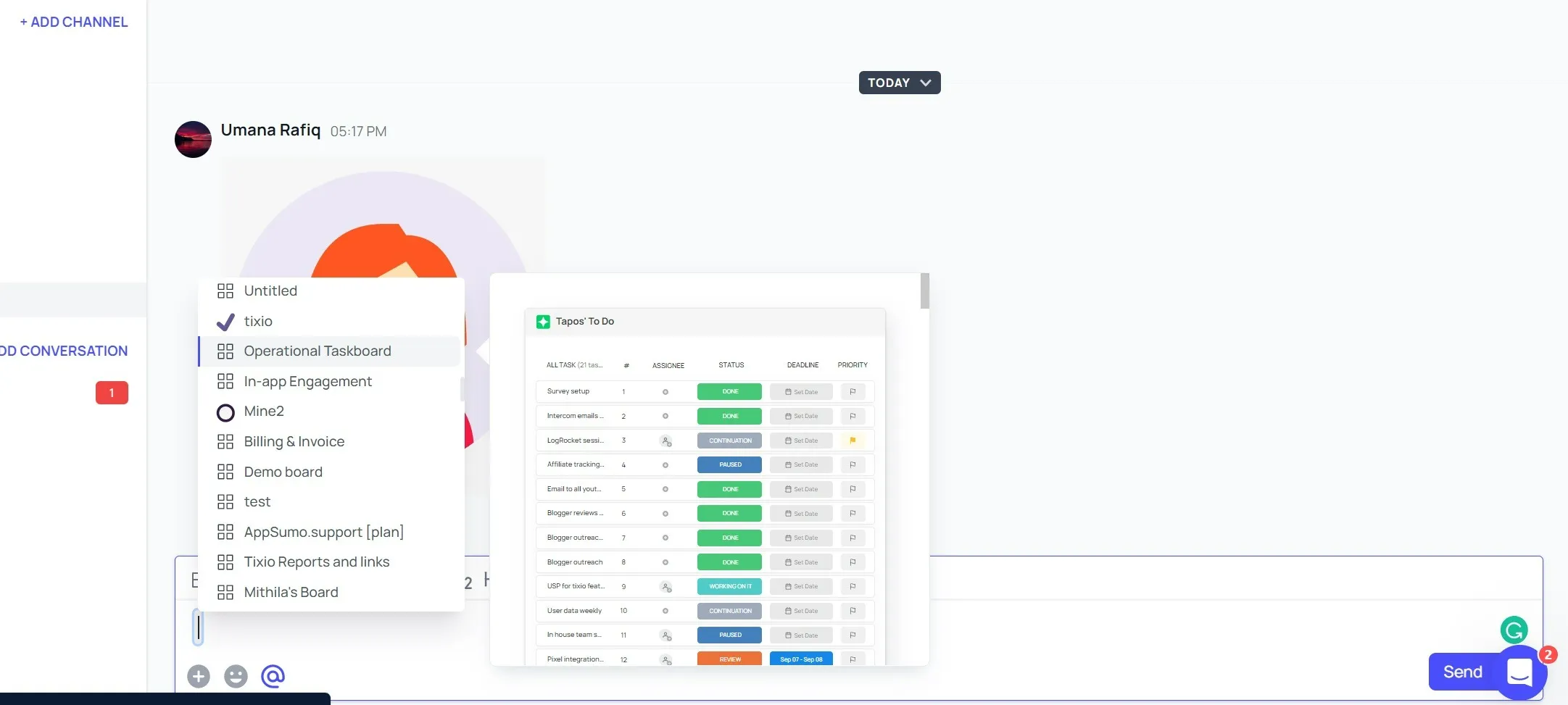
You can share images, emojis and even your boards/wikis through direct messaging.
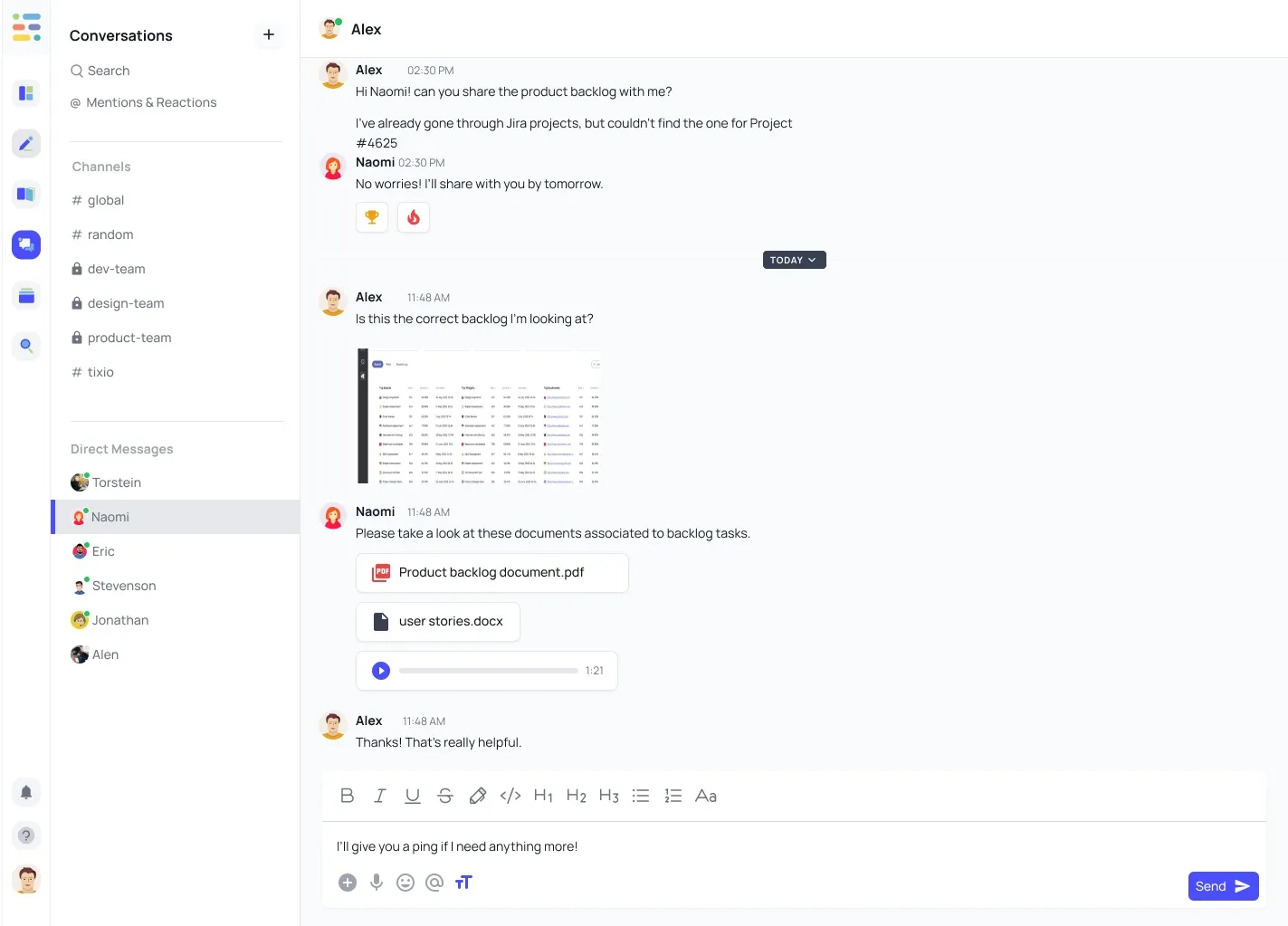
Click to + Add channels to start a group conversation with any team. Get focused discussions without bothering other members and distractions.
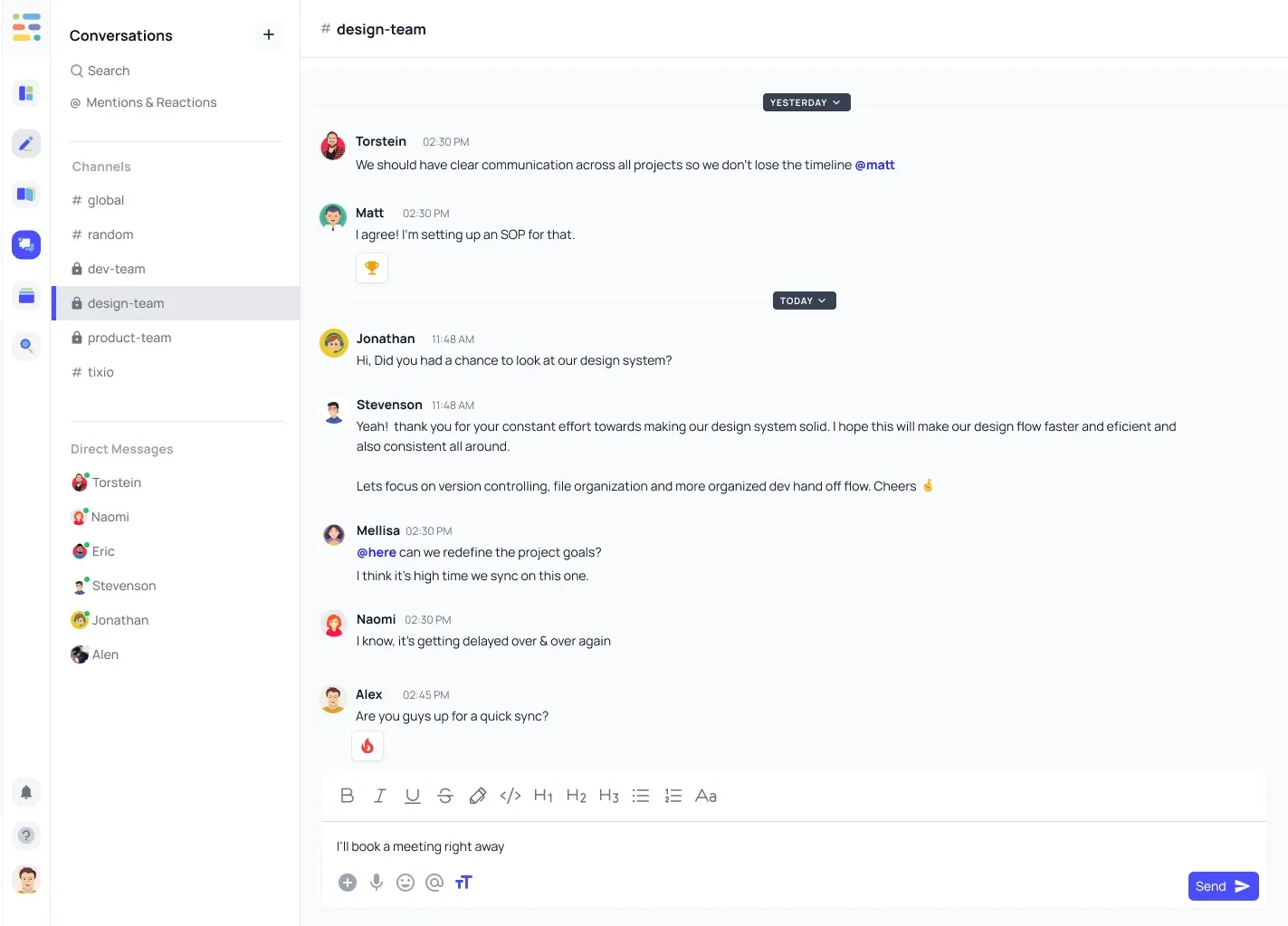
You can add multiple members and communicate with each other. You can share images, emojis and even your boards/wikis through channels.
Channel name and privacy
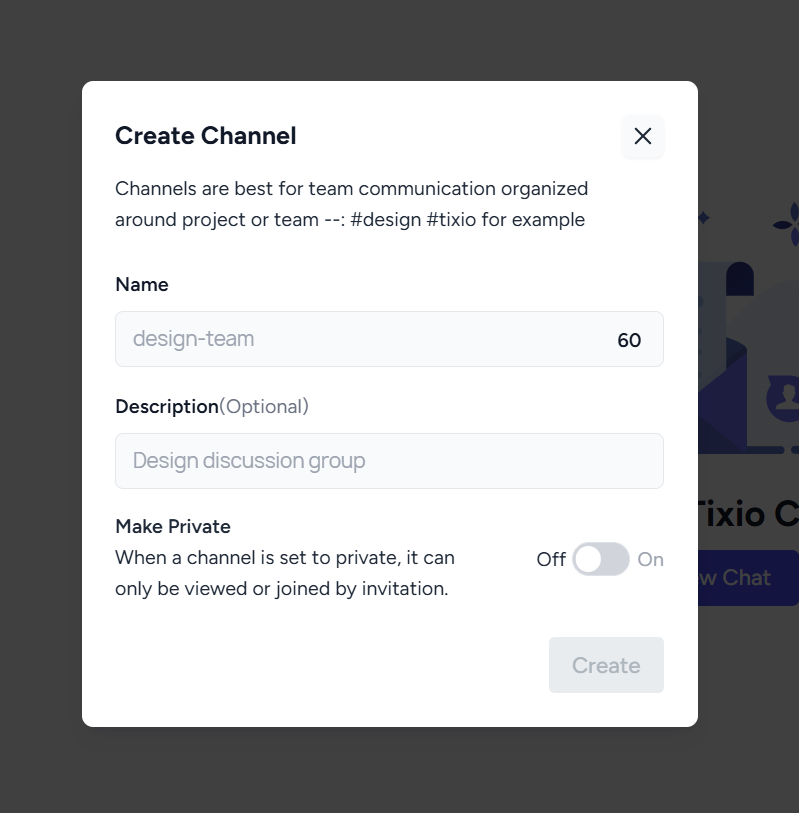
When you create a new channel you can add name, description and also make it as public/private.
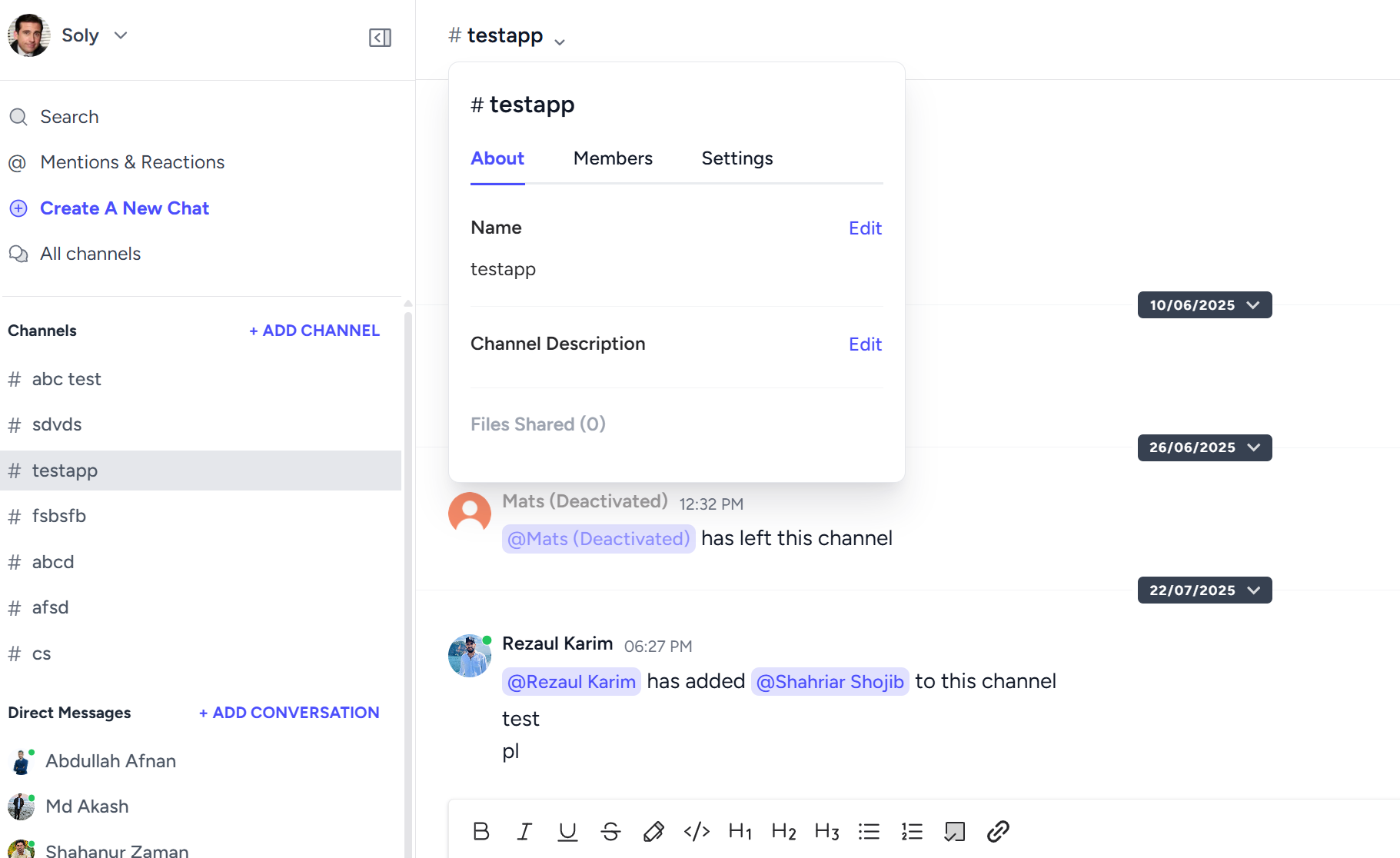
Channel settings
For existing channels, you can edit the settings and members. There are 3 sections - About, members and settings. Each section is dedicated to channel setting
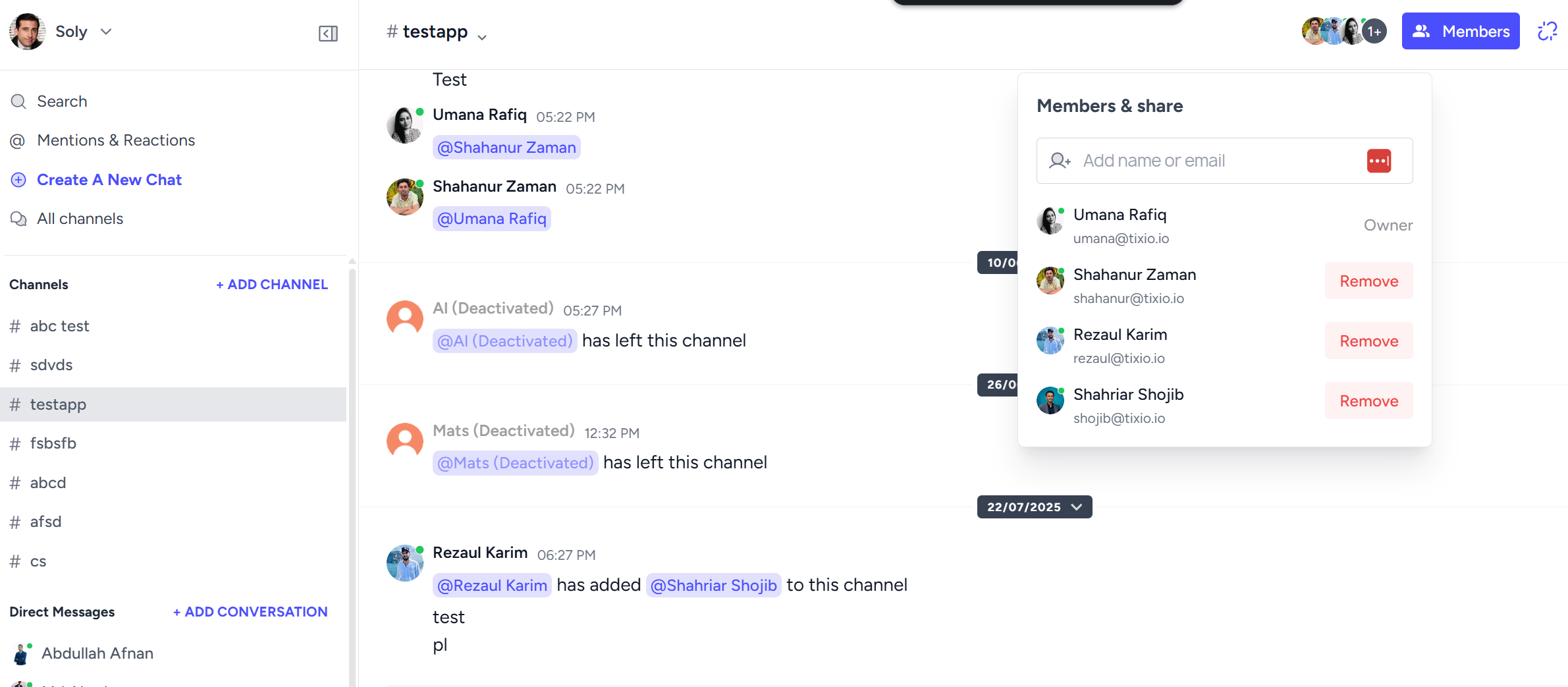
Add/remove members
From the members section, you can add or remove members from the channel. The members you add to the channel must be already your workspace member. You cannot add members from another workspace to your current workspace channels.
Leave/mute channels
You can leave or mute the channel from the channel settings as well. Once muted, you'll no longer receive any notification for the conversations. You can unmute channels anytime you need.
Public channel
If you create a public channel, your conversations will be shared with the members and anyone in the workspace can access and join it.
Private channel
If you create a private channel, your group conversations will stay private among the channel members. Not even the workspace owner or admin can access the private channels if it's created by members.
🙌Sharing in chat
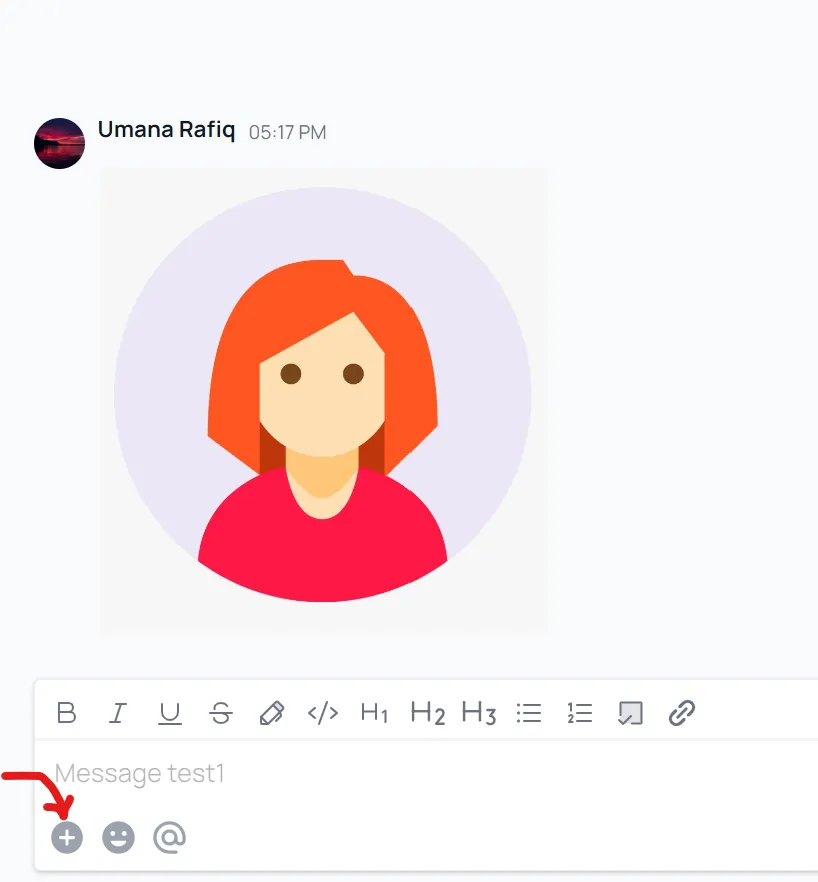
Images
You can share images in chat. You can upload an image or simply drag n drop images into conversations.
Emojis
You can share emojis in conversations and even add reactions to messages with emojis.
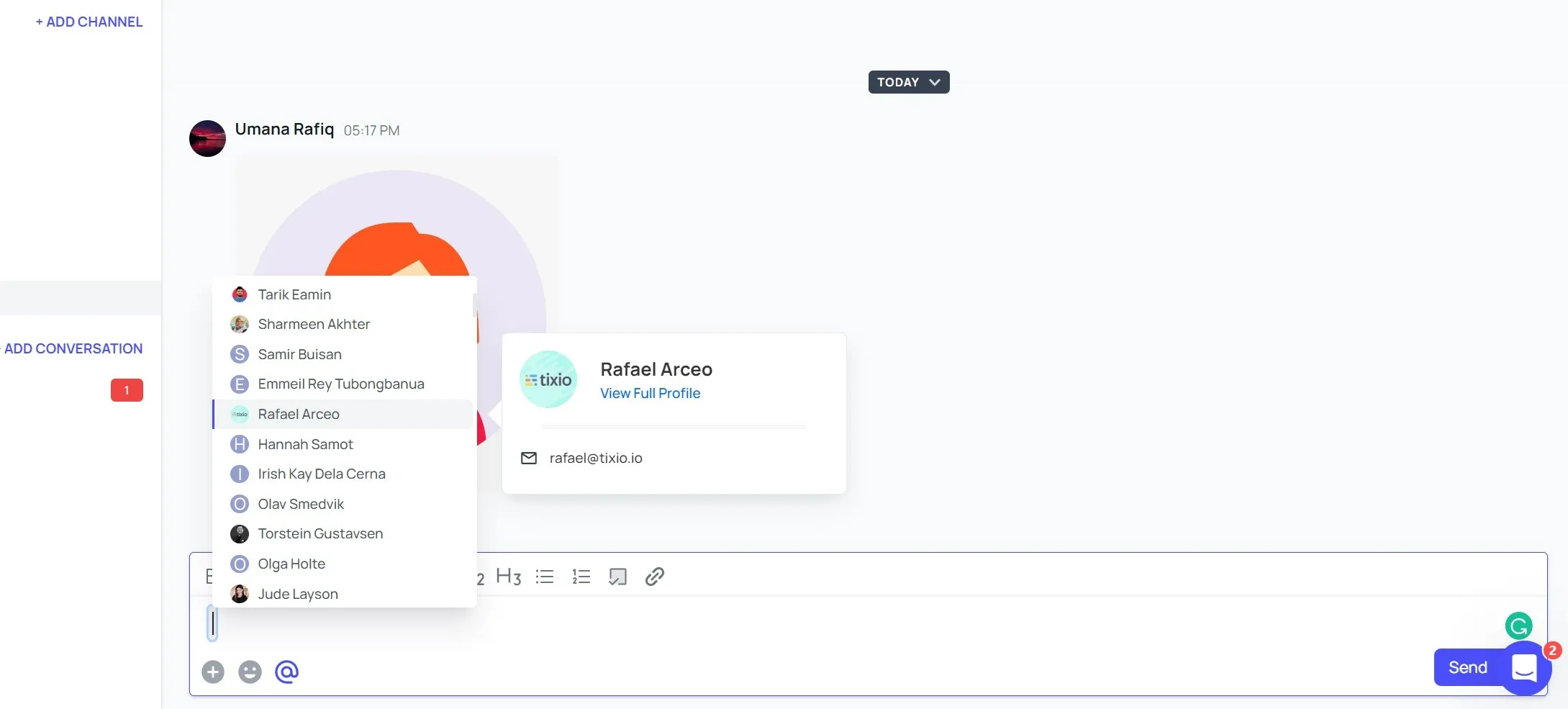
Mention people
You can mention other people in the channel with @mentions or click to this button to open mention toolbar.
Mention Board / Wiki
Sharing becomes easier when you don't have to put URLs in conversations. Instead, you can simply mention the board/wiki to share the contents with anyone instantly. You can hover the board/wiki name to even see the preview before sharing.