Automations in Tixio Projects help you save time by automatically performing actions when specific events happen. Instead of manually moving tasks, updating statuses, or organizing work, you can set up rules that run automatically in the background.
Using automations triggers and actions teams can automate:
Project workflows
Development pipelines
Escalation systems
Review processes
Deadline / Due Date reminders
Task ownership
QA pipelines
Approval flows
Task Notification systems
Essentially enabling teams to run projects with minimal manual management.
This guide walks you through how to create a simple automation step-by-step.
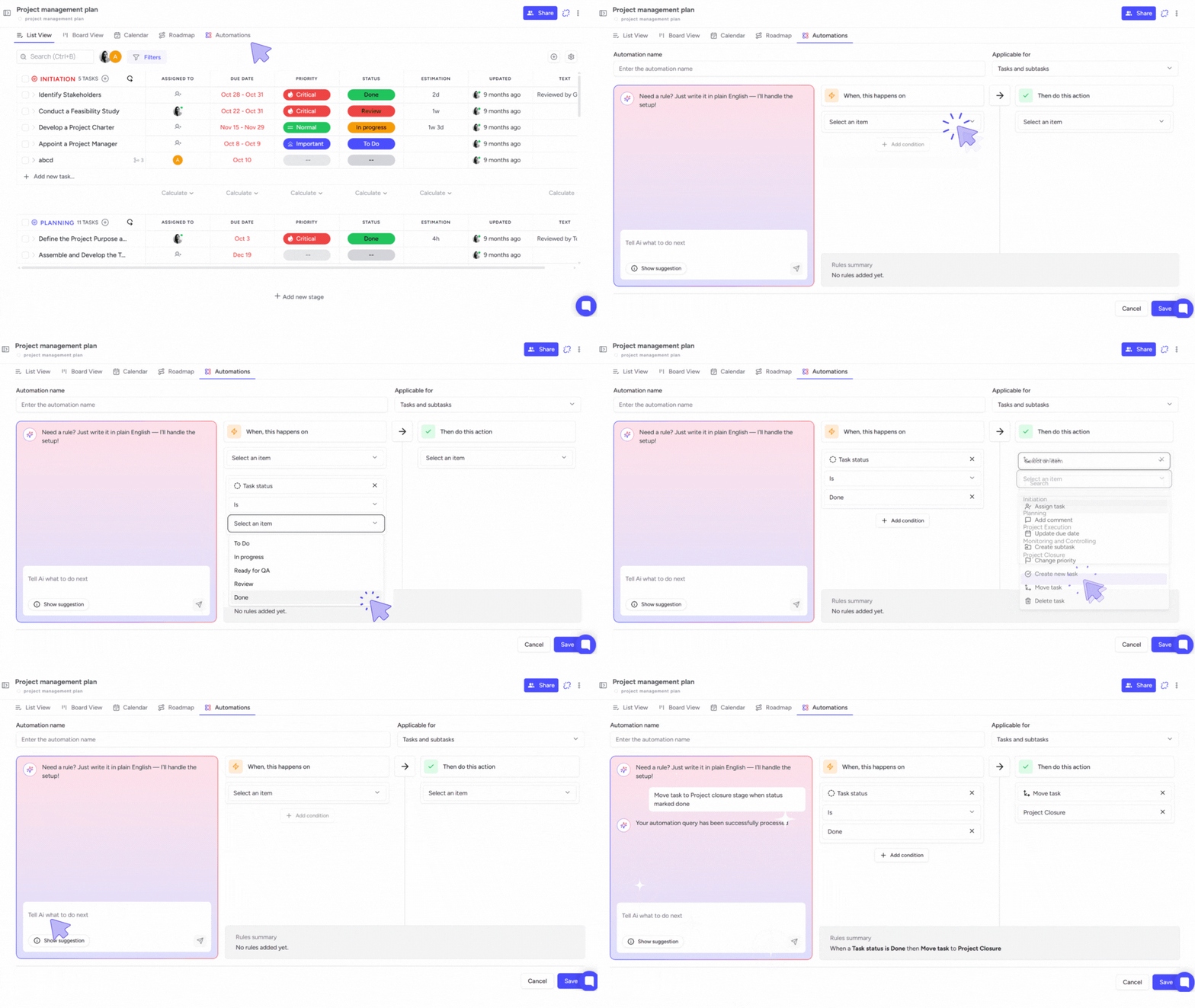
This example will show you, how you can automate to move a task to the “Done” stage whenever the task status becomes “Done.”
Navigate to the project or sub-project where you want to create the automation.
From the top menu, click on Automations.
This will open the automation builder where you can create and manage automation rules.
Once inside the Automations section:
Click Create Automation or start configuring a new rule.
You will see two main sections:
When this happens (Trigger)
Then do these actions (Action)
Triggers define when the automation should run, while actions define what should happen next.
The trigger tells Tixio what event should start the automation.
Follow these steps:
In the Trigger section (left side), click the trigger dropdown.
Select Task Status.At the bottom of the trigger settings, choose the trigger condition.
Select Done.This means the automation will run whenever a task status changes to “Done.”
Next, define what action should happen after the trigger occurs.
In the Action section (right side), click Add Action.
Choose Move Task.Select the target stage or location.
Choose Done Stage.Optionally select Top if you want the task placed at the top of the list.
This ensures the task is automatically moved to the correct stage when completed.
At the top of the automation builder:
Enter a clear Automation Name.
Example names:
Move completed tasks to Done
Auto move tasks when completed
Task status Done → Move to Done stage
Using clear names helps your team understand what each automation does.
Once everything is configured:
Review the Rules Summary at the bottom.
Click Save.
Your automation will now start working automatically.\
Make a small change (e.g., mark a task “Done”) to verify that the automation runs as expected.
You can monitor automation logs to track its behaviour and adjust if needed.
If you’re not sure how to set up an automation manually or want to save time:
Click on “Use AI to build workflow” (visible in the automation panel).
A prompt box will appear. Type your instruction in plain language. For example:
“When task is marked Done, move it to Completed and notify the project manager.”
“If a task is overdue, change its priority to Critical and alert the team.”
The AI will instantly translate your prompt into an automation workflow.
Review the generated setup:
It will display the Trigger, Action, and Conditions.
Click Create Automation to finish.
You can add additional logic to your automation.
Click Add Condition to create more specific rules.
Example:
When Task Status = In Progress
AND Priority = High
Then:
Move task to “Priority Work In Action” Stage
This helps create more advanced automation workflows.
✔ Use clear naming conventions so your team understands each automation.
✔ Start with simple automations before creating complex workflows.
✔ Review automations regularly to make sure they still match your process.
✔ Avoid creating multiple automations that perform the same action, as this may cause conflicts.
How to create automation when task status changes?
How to move tasks automatically when status changes?
How to notify someone when a task is completed?
How to create a review task when development is finished?
How to automatically assign QA when a task is completed?
How to trigger workflows when a task is marked done?
How to escalate tasks when status becomes blocked?
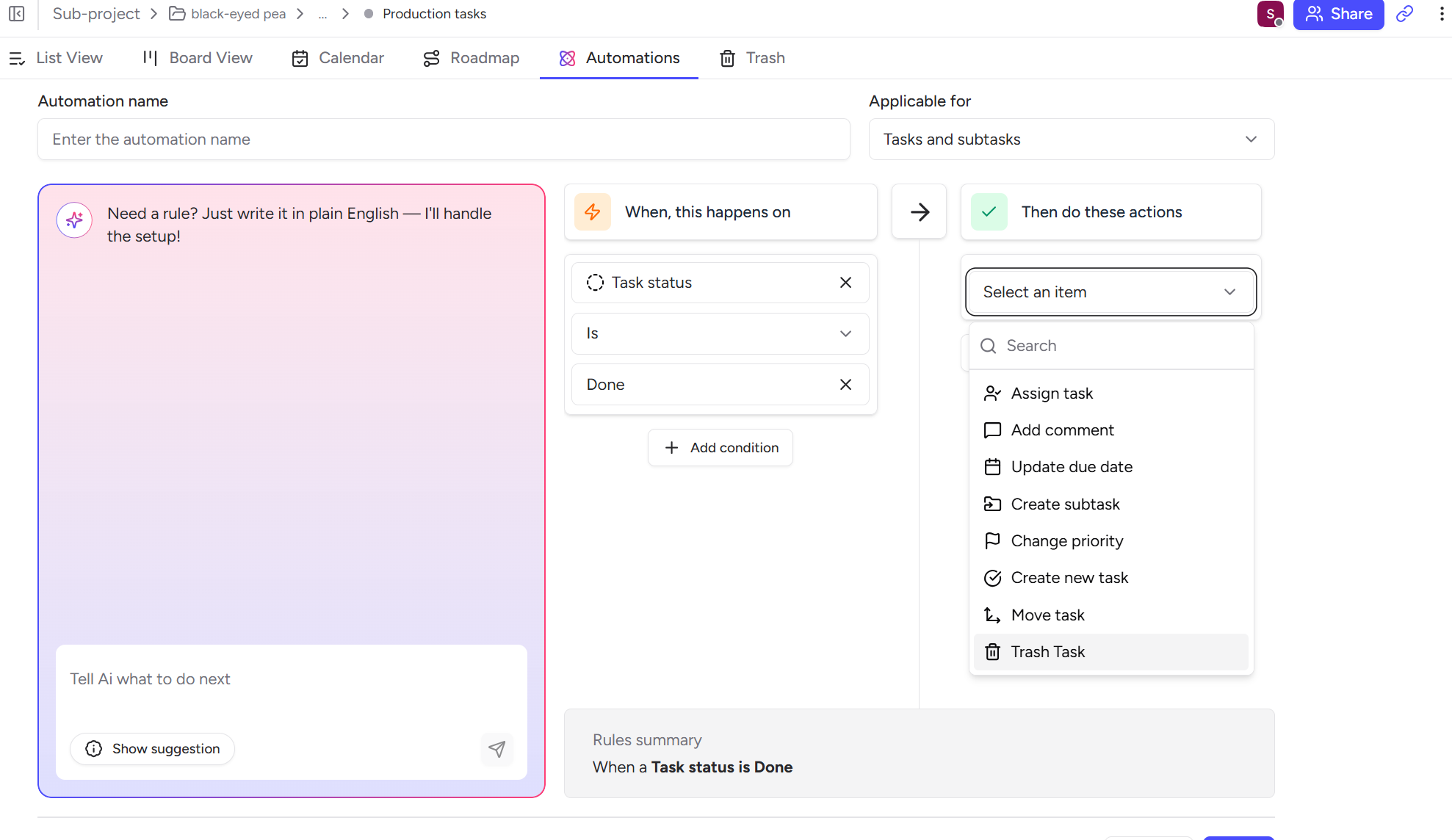
Task status → is Done
Task status → is In Progress
Task status → is Review
Task status → is Blocked
Assign task
Add comment
Update due date
Create subtask
Change priority
Create new task
Move task
Trash task
1⃣ Auto move completed tasks
When task status is Done
→ Move task to Done column at top
2⃣ Get alert / notification when task completed
When task status is Done
→ Add comment  and tag @Manager
💡 Mentioning someone in the comment sends email notification.
3⃣ Start next workflow step
When task status is Done
→ Create new task "QA Review"
→ Assign to QA Team
4⃣ Escalate blocked tasks
When task status is Blocked
→ Change priority to Critical
→ Add comment and tag @Project ManagerHow to automatically assign tasks when created?
How to create a task checklist automatically?
How to add subtasks automatically?
How to set default deadlines for tasks?
How to create templates using automation?
How to standardize project workflows automatically?
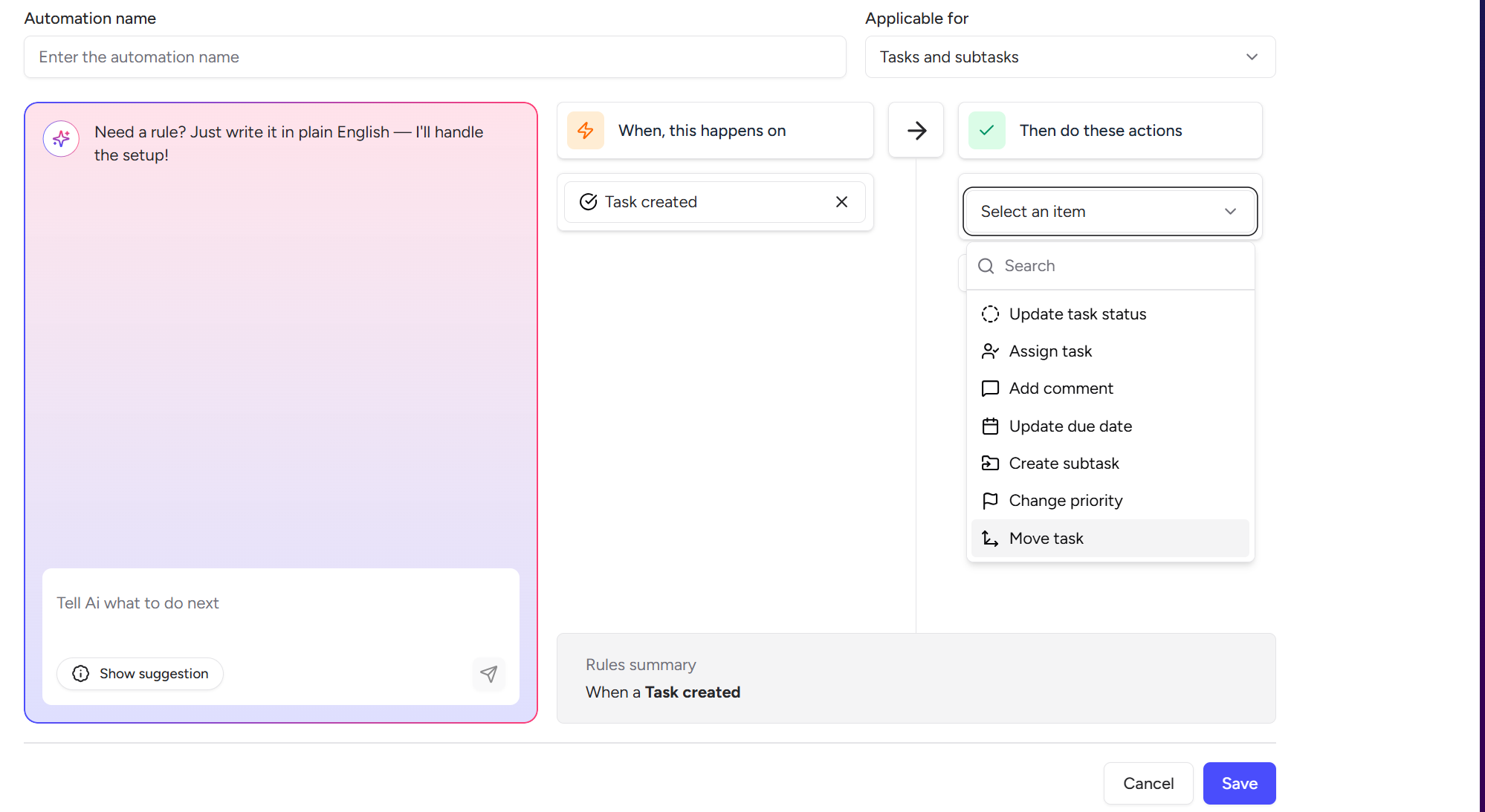
When Task CreatedAssign task
Set due date
Create subtasks
Change priority
Move task
1⃣ Auto assign tasks
When task created
→ Assign to Team Lead
2️⃣ Auto generate checklist
When task created
→ Create subtasks:
   - Design
   - Development
   - Testing
3️⃣ Set standard deadlines
When task created
→ Update due date to +5 daysHow to escalate critical tasks automatically?
How to notify managers about urgent tasks?
How to highlight critical tasks automatically?
How to auto-assign high priority tasks?
How to move urgent tasks to the top of the list?
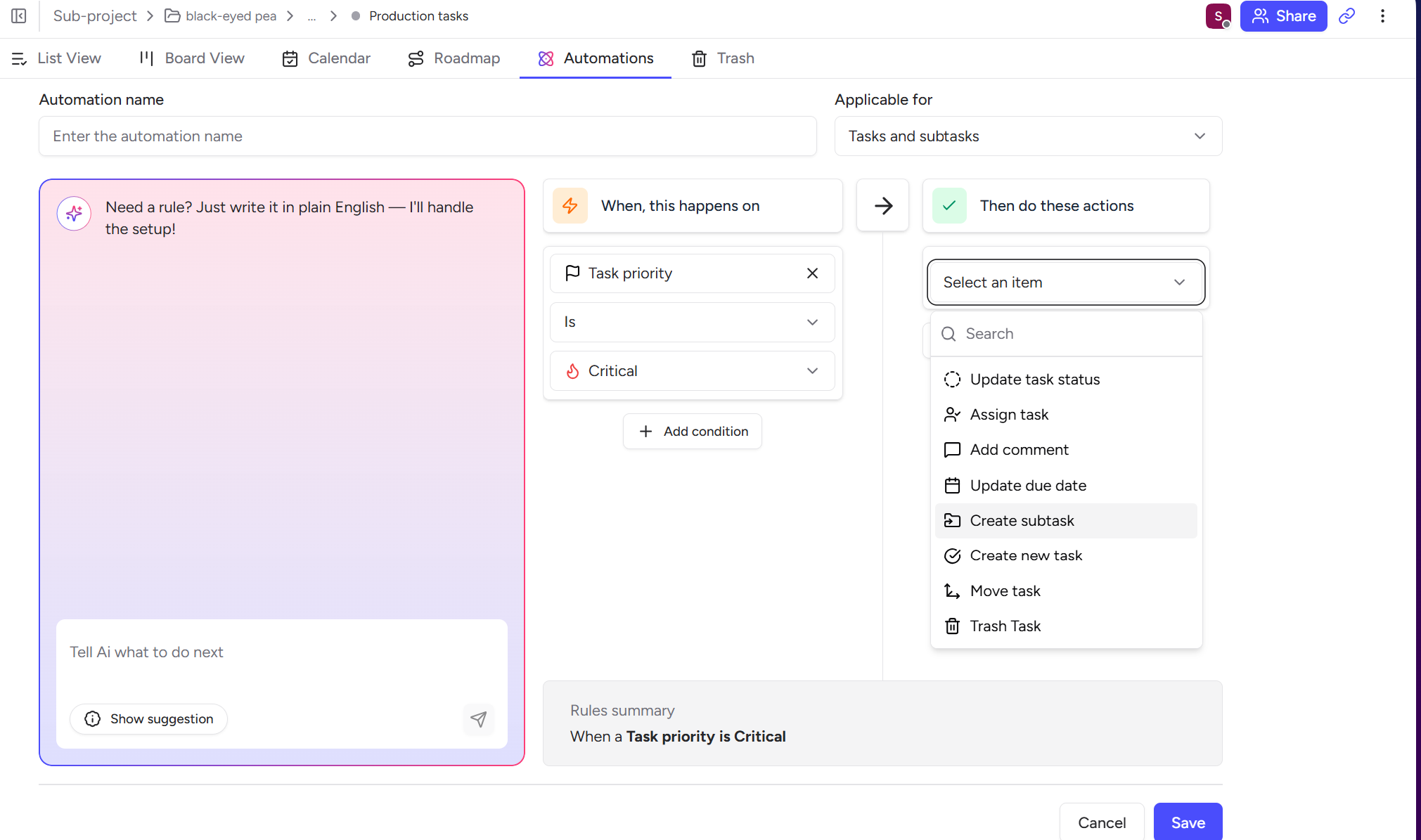
Task priority = CriticalAssign task
Add comment
Change status
Move task
1⃣ Alert leadership / get notified for critical tasks
When task priority is Critical
→ Add comment @Founder
2️⃣ Move urgent tasks to top
When task priority is Critical
→ Move task to top
3️⃣ Assign emergency tasks
When task priority is Critical
→ Assign to Ops LeadHow to notify someone when a task is assigned?
How to change task status automatically when assigned?
How to start a workflow when someone receives a task?
How to assign follow-up subtasks automatically?
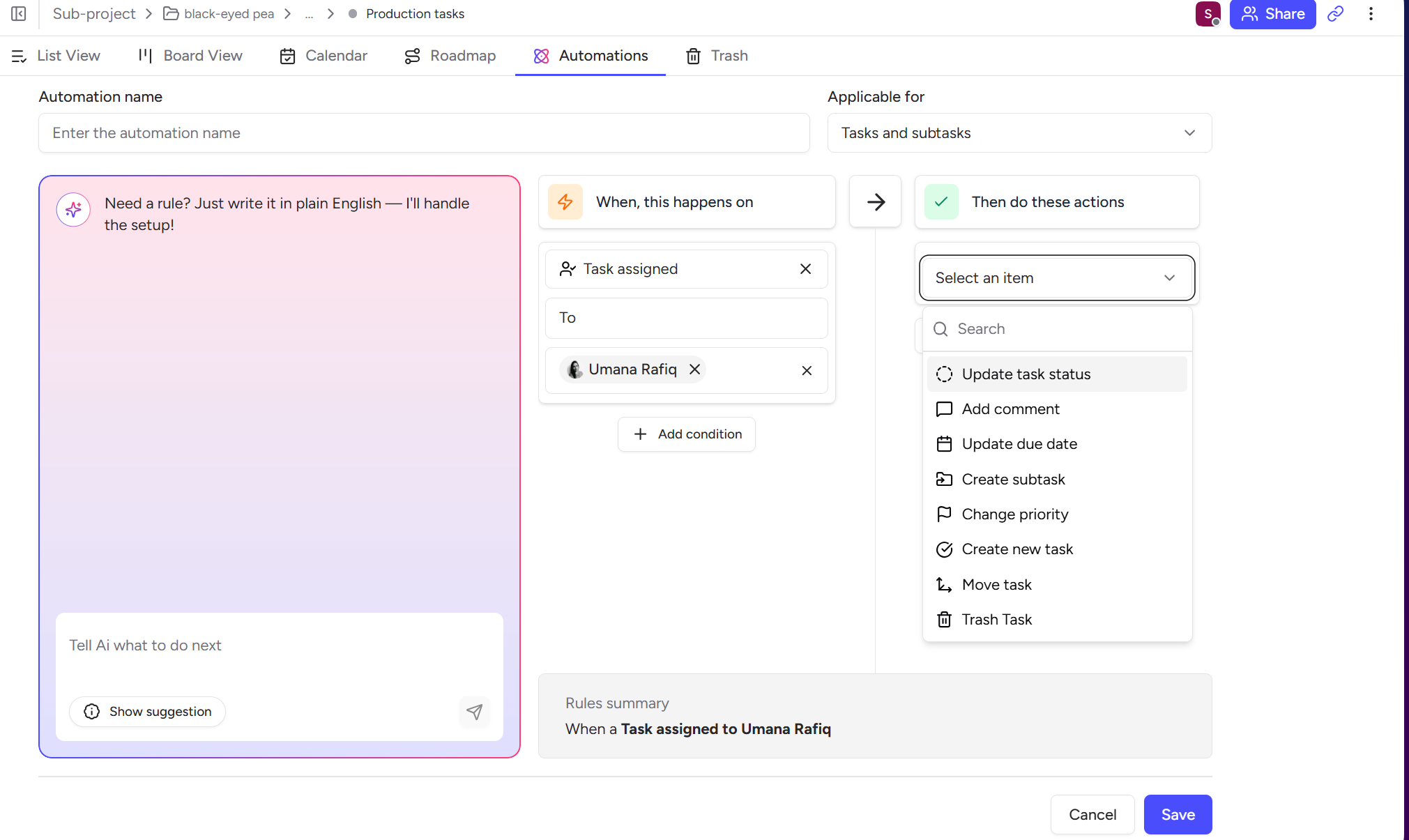
Task assigned to specific userUpdate status
Add comment
Change priority
Create subtask
1⃣ Notify assignee
When task assigned to Umana
→ Add comment @Umana
2️⃣ Auto change status
When task assigned
→ Update status to In Progress
3️⃣ Assign onboarding tasks
When task assigned to Developer
→ Create subtask "Setup environment"How to prevent tasks without owners?
How to automatically assign tasks if they become unassigned?
How to notify managers about unassigned work?
How to ensure every task always has an owner?
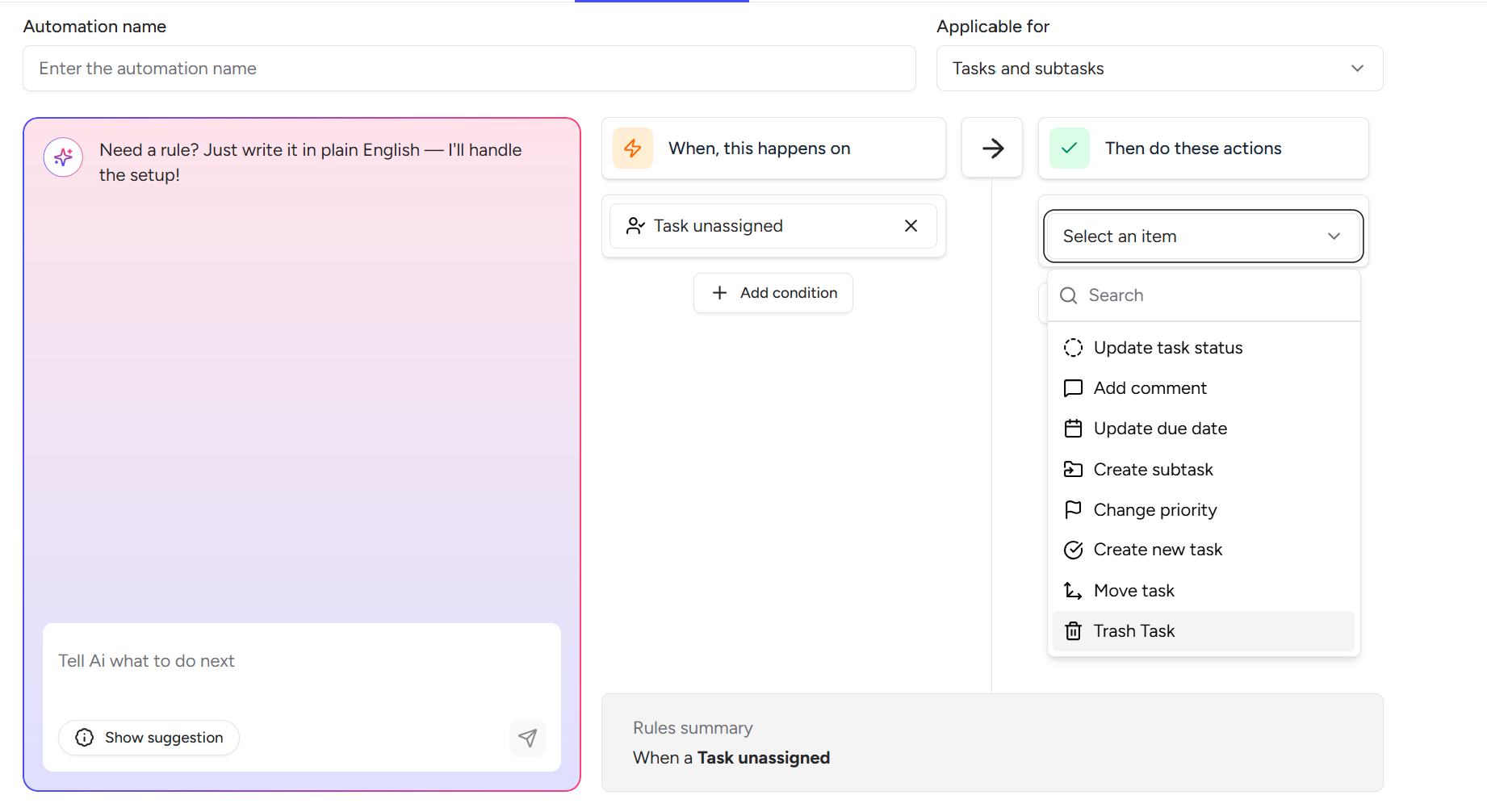
Task unassignedAssign task
Change priority
Comment
1⃣ Prevent unowned tasks
When task unassigned
→ Assign to Project Manager
2️⃣ Alert team
When task unassigned
→ Add comment @TeamLeadHow to get alert / notification if a task reached it’s due date?
How to get alert / notification if I myself / someone failed a deadline?
How to get notified if a task has a deadline today?
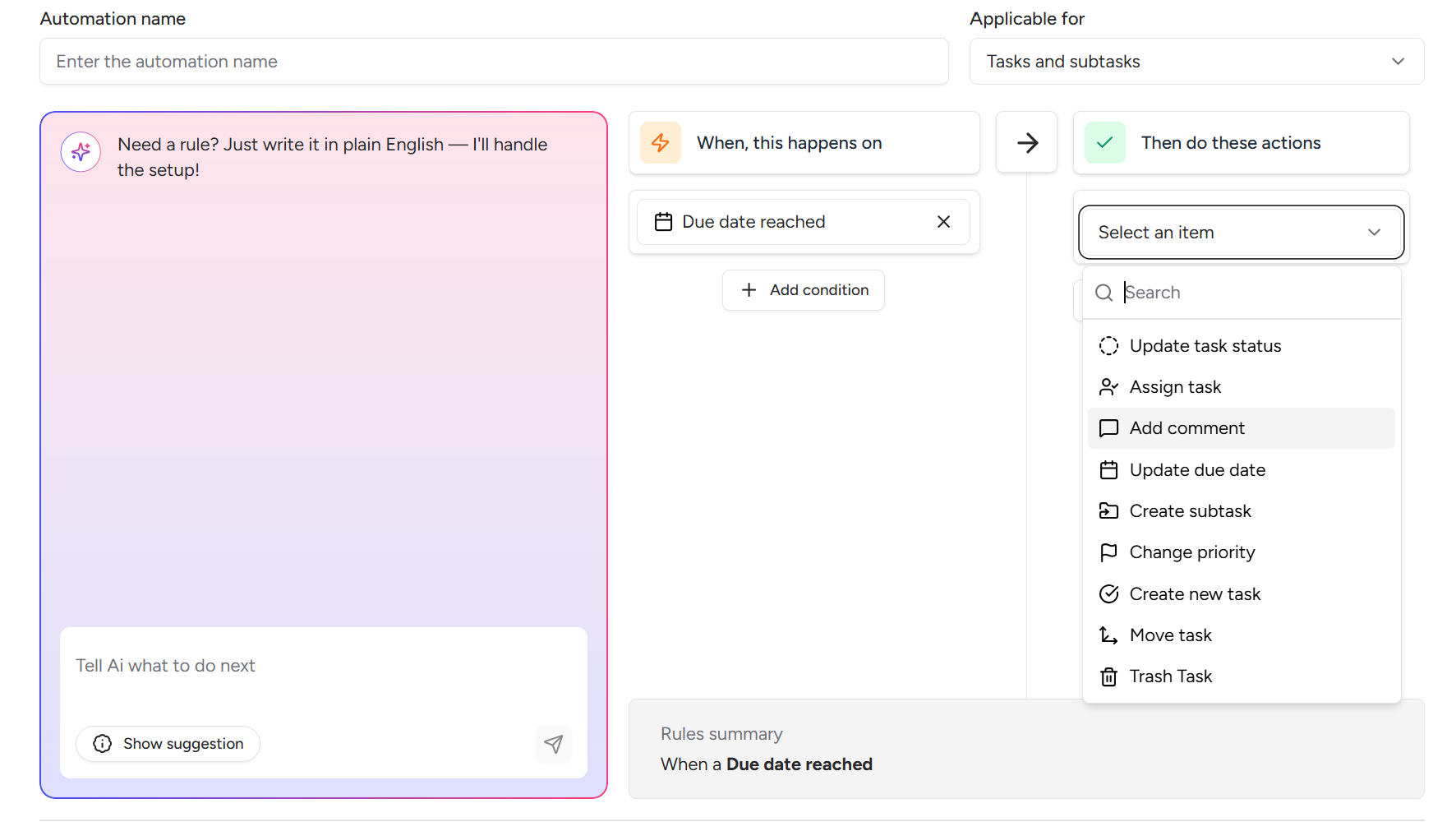
Due date reachedChange priority
Comment
Assign task
1⃣ Deadline alert
When due date reached
→ Add comment @Assignee
2️⃣ Escalate overdue tasks
When due date reached
→ Change priority to HighHow to get notified for tasks overdue?
How to change priority for overdue tasks?
How to escalate overdue tasks automatically?
How to notify managers when tasks are overdue?
How to reassign overdue work?
How to ensure overdue tasks get attention quickly?
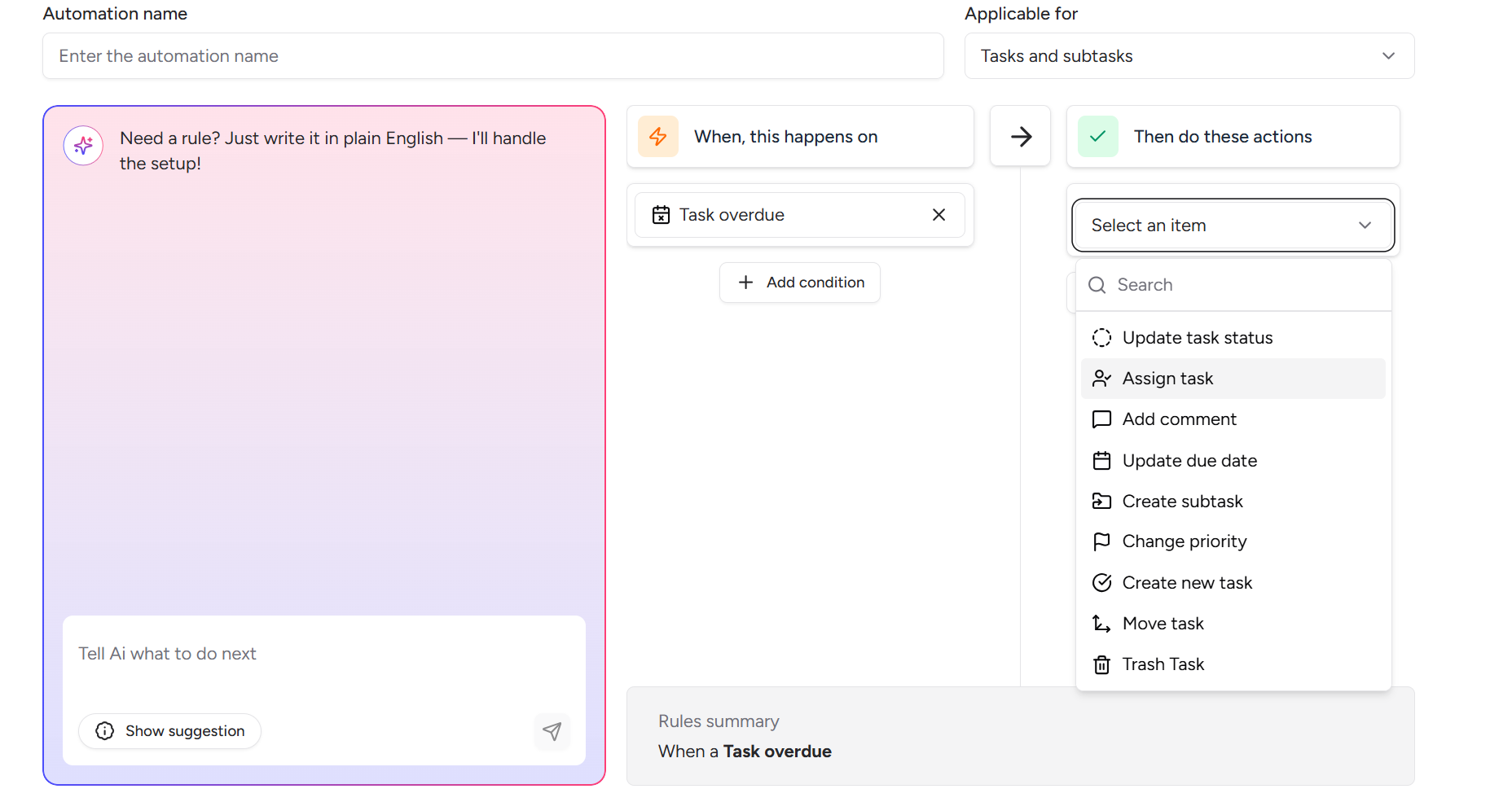
Task overdueChange priority
Assign manager
Add comment
1⃣ Escalation workflow
When task overdue
→ Change priority to Critical
→ Add comment @Manager
2️⃣ Reassign overdue tasks
When task overdue
→ Assign to Team LeadHow to create next steps automatically when subtasks are done?
How to mark the main task as Done, when all sub-tasks are completed?
How to notify project managers about progress?
How to get notified, when all sub-tasks are completed?
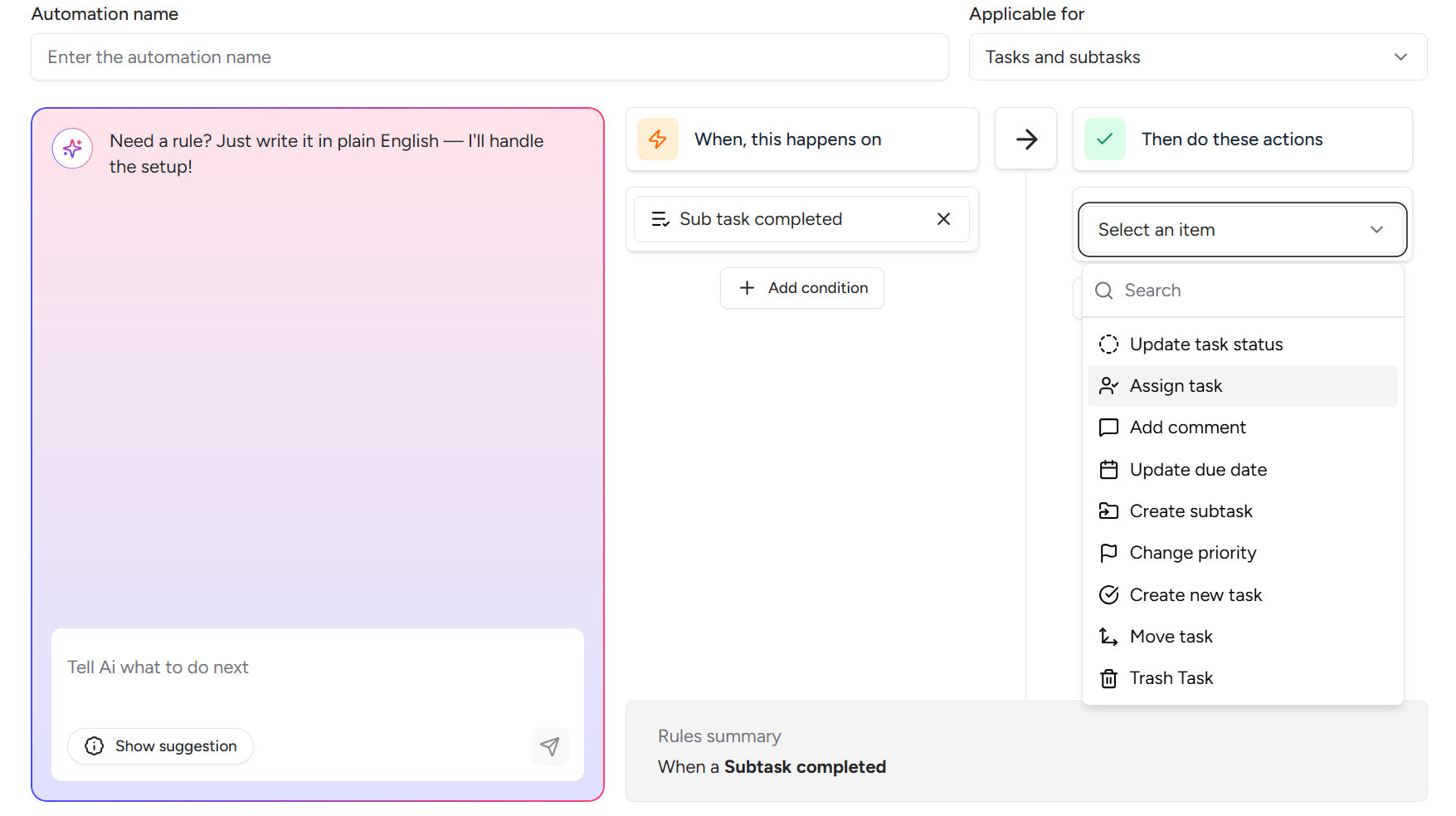
Subtask completedUpdate main task
Create next subtask
Comment
1⃣ Progress workflow
When subtask completed
→ Create next subtask
2️⃣ Notify manager
When subtask completed
→ Add comment @Manager• How to trigger workflows when someone comments?
• How to create follow-up tasks from discussions?
• How to escalate tasks when conversation starts?
• How to convert discussions into actionable work?
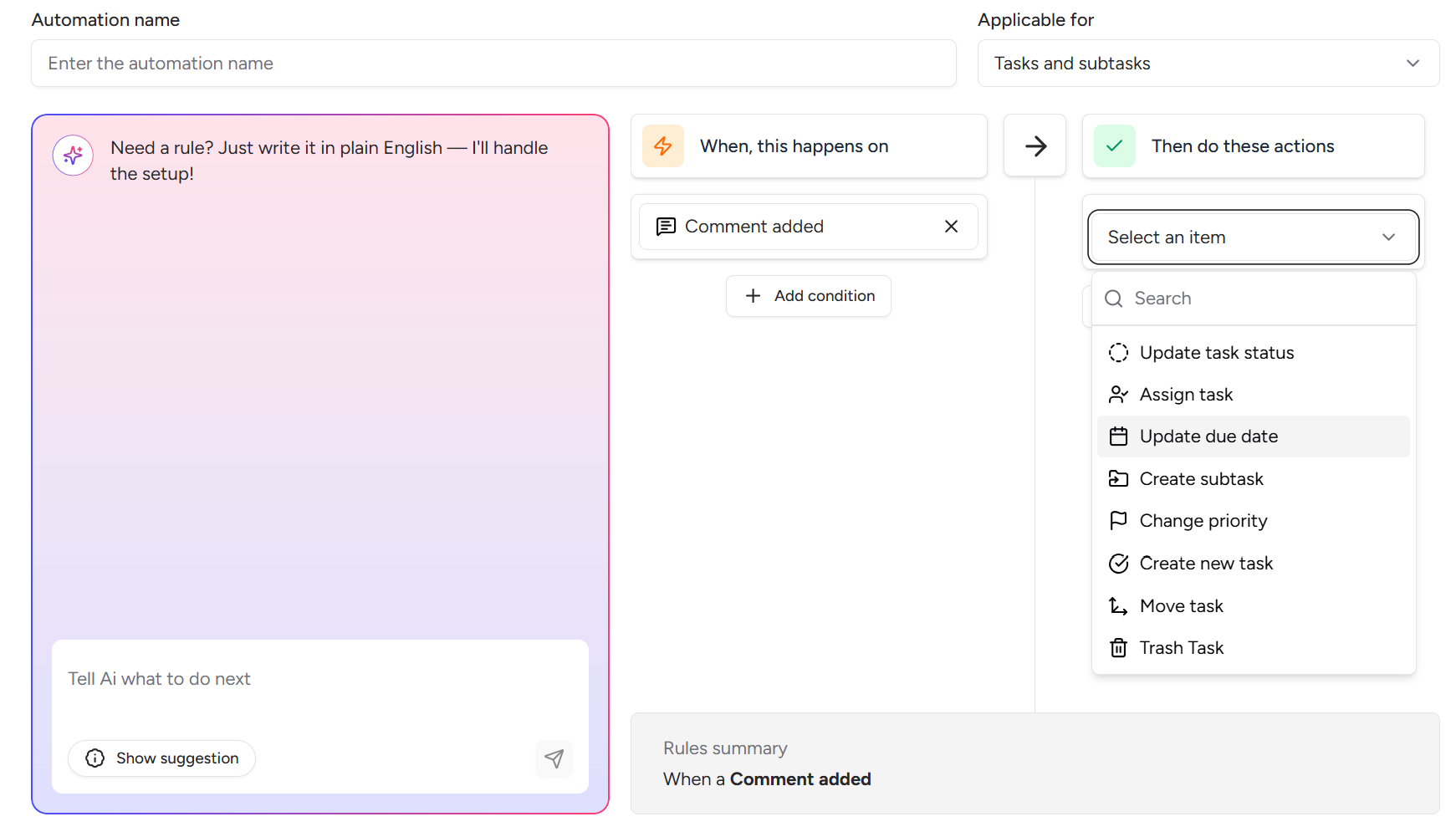
Comment addedAssign task
Change priority
Update due date
Create task
1⃣ Escalate discussion
When comment added
→ Assign task to Manager
2️⃣ Trigger follow-up tasks
When comment added
→ Create new task "Follow-up"How to trigger workflows when tasks move between stages?
How to assign a person, when task moves to new stage?
How to get notified, when task moves to new stage?
How to change priority, when task moves to new stage?
How to automate Kanban pipelines?
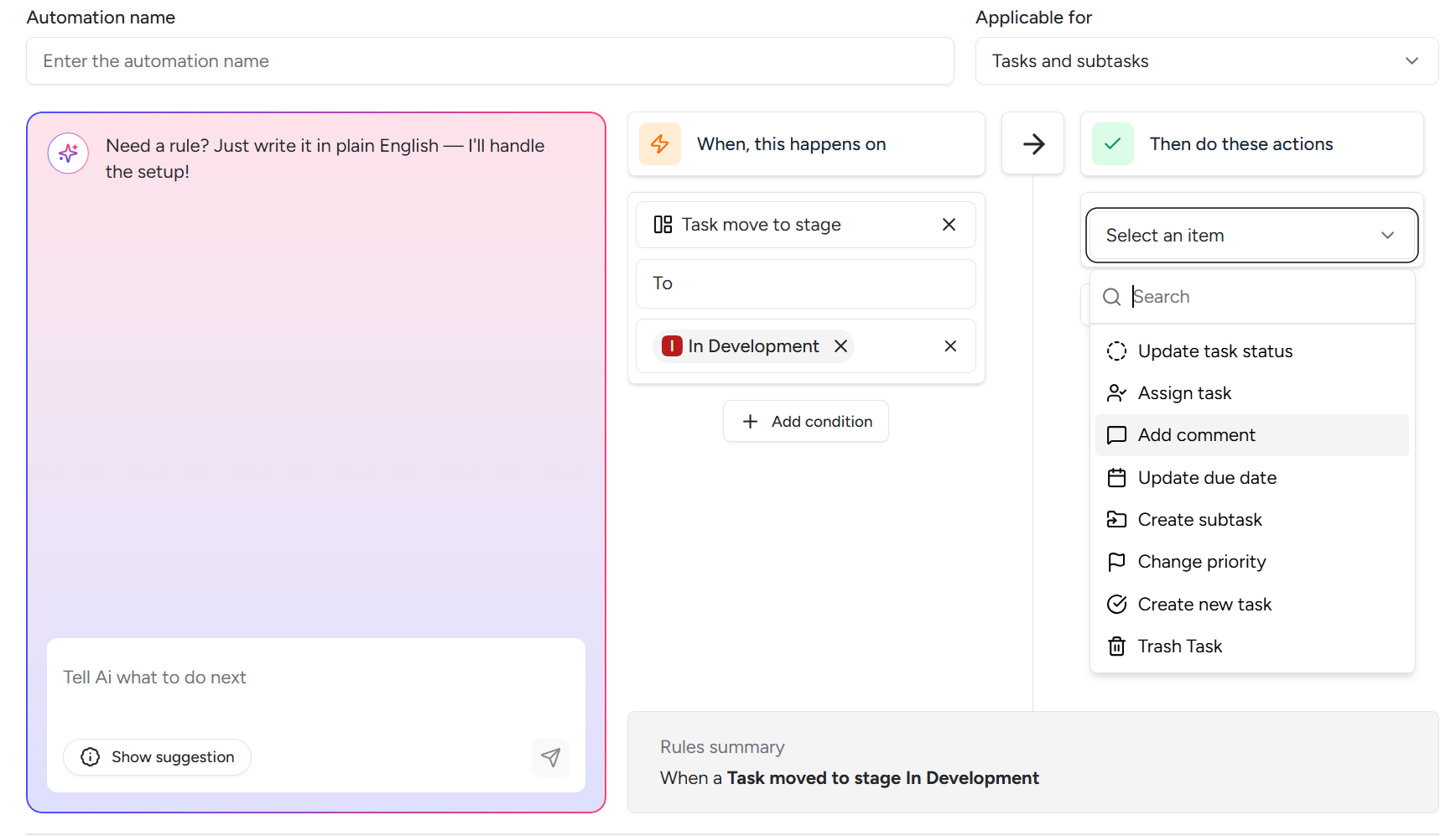
Task moved to stage "In Development"Assign task
Create subtasks
Change priority
1⃣ Developer workflow
When task moved to In Development
→ Assign Developer
2️⃣ QA pipeline
When task moved to Review
→ Create subtask "QA Testing"How to notify users when deadlines arrive?
How to escalate tasks when due dates pass?
How to increase priority automatically when deadline arrives?
How to remind team members about deadlines?
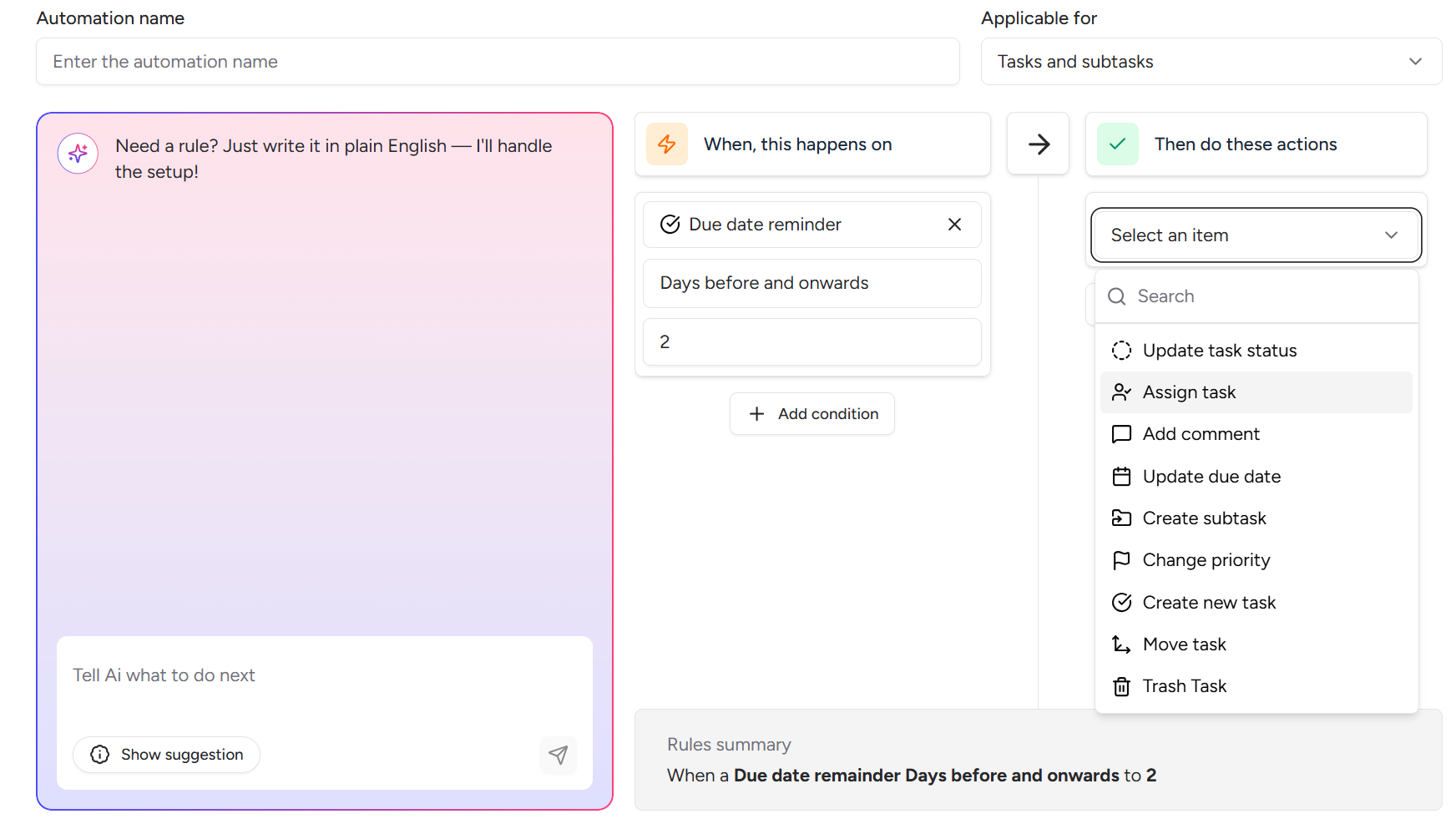
X days before due dateExample shown:
3 days before due dateComment
Assign
Change priority
Create task
1⃣ Reminder before deadline
3 days before due date
→ Add comment @Assignee
2️⃣ Escalation warning
2 days before due date
→ Change priority to High
Add more conditions
You can add more conditions such along with X days before due date, such as
Task assignee is "Select Assignee"You can select yourself as assignee here. This will give due date reminder for your assigned tasks only.
How to get notified when a task is done / blocked / in review?
How to send email notifications using automations?
How to notify users automatically when something happens?
How to create notification workflows in Tixio?
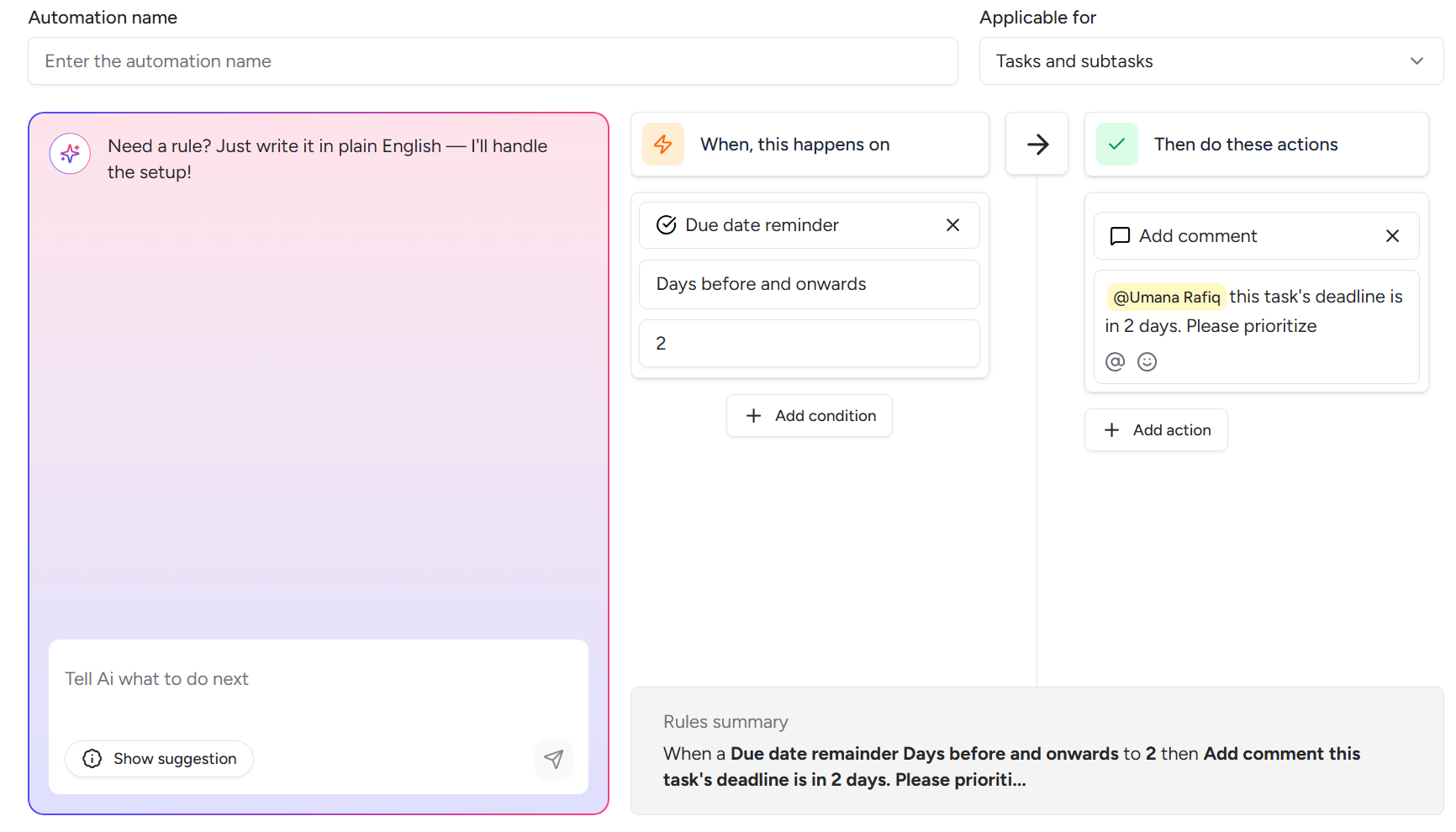
Add comment + mention user
This automatically sends email notifications.
Trigger
Task status = DoneAction
Add comment
@Umana Task has been completed
User receives an email notification immediately.
Tixio can send email alerts using comments.
Example:
Add comment:
@Umana Please check this task.
This automatically triggers email notification.
So automation example:
When task overdue
→ Add comment @Assignee
Result:
✔ User receives email reminder automatically
When task created
→ Assign project manager
→ Create subtasksWhen task moved to Development
→ Assign Developer
→ Create QA subtask3 days before due date
→ Comment @AssigneeWhen task overdue
→ Change priority to Critical
→ Notify ManagerWhen priority Critical
→ Assign Ops Lead
→ Notify FounderTixio automation can handle:
✔ Task lifecycle management
✔ Workflow pipelines
✔ Deadline monitoring
✔ Escalations
✔ Team notifications
✔ Automatic assignments
✔ Process standardization
This essentially allows teams to run projects almost on autopilot.