Tixio HR's Leave Management system helps you streamline time-off requests, track employee leave balances, and apply custom leave policies — all in one place. This guide will walk you through the key features and how to get started.
Before managing leave, you need to define the types of leave your organization offers.
Go to Leave Management > Leave Types
Click Add Leave Type
Fill in details like:
Leave name (e.g., Sick Leave, Casual Leave)
Approval required or auto-approved
Click Save
👉 Tip: You can create different types for full-time, part-time, or region-specific teams.
Leave policies control how leave is granted and calculated.
Navigate to Leave Policies
Click Create Policy
Set: leave entitlement per leave type
Assign the policy to specific employee
This ensures leave balances are calculated automatically based on the rules you define.
To ensure accurate leave tracking, set up work schedules and regional calendars.
Go to Work Schedule Settings
Create workweek configurations (e.g., Mon–Fri, Sun–Thu)
Set daily working hours
Add Public Holidays for each country or region your team operates in
🌍 This is especially helpful for managing international teams across different time zones.
Employees can request leave directly from their portal.
Employee clicks on Apply for Leave
Select leave type
Select a specific date or date range
Set for half day/full day
Add notes (if needed)
Submit for approval
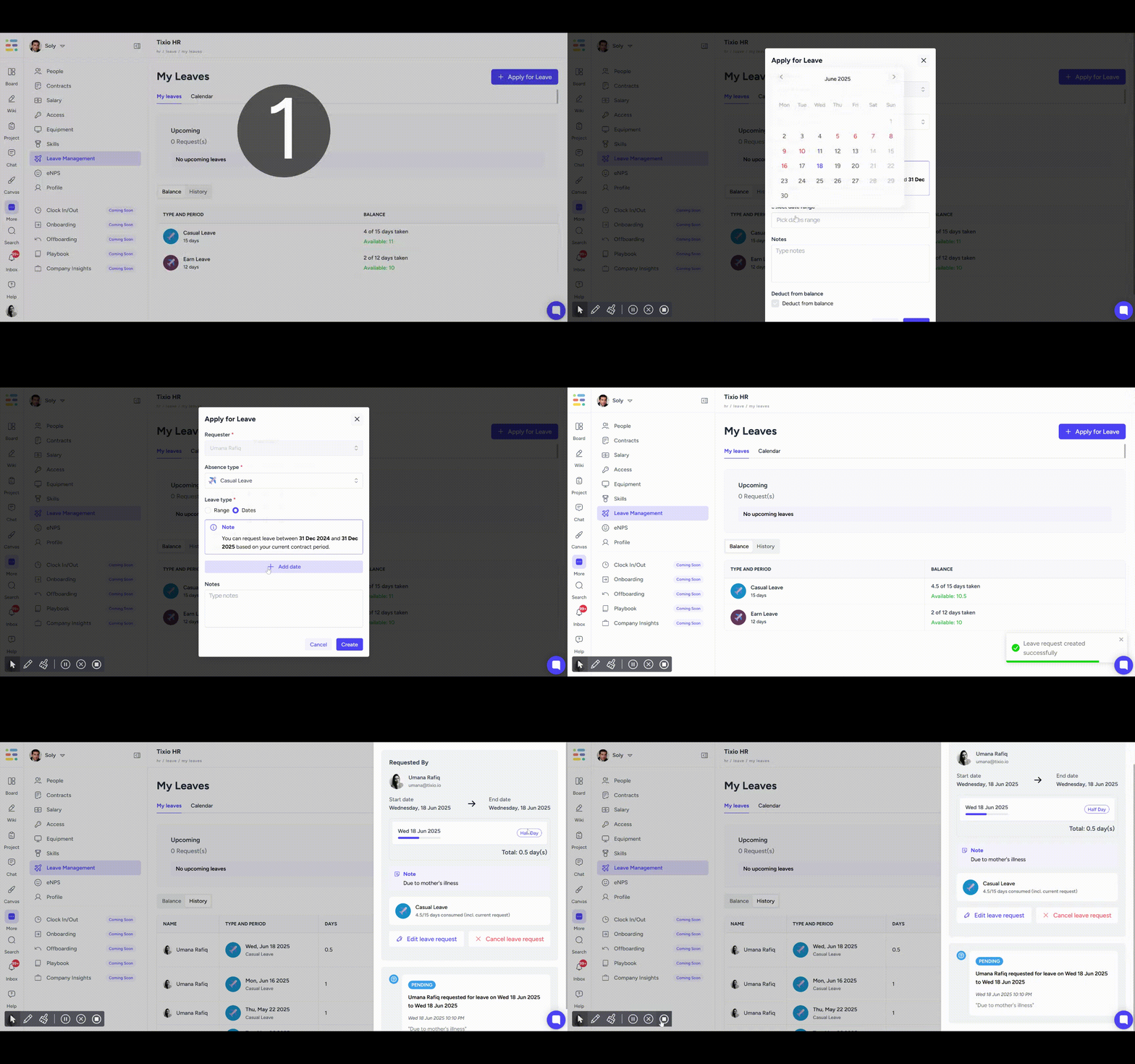
Once submitted, you can see the application from leave history from your leave management page.
You can edit or remove the leave application until it is approved by your HR admin.
Once it’s approved/rejected, you cannot modify the application.
HR admin will get notified of the leave application inside Tixio app notification / via email.
Employee will also get notified whether the leave application is approved or rejected by HR admin.
Leave Approval
HR admin can approve or reject a leave application from the system.
Track leave activity in real time from the HR Dashboard:
Who's on leave today
Pending leave requests
Leave trends and usage breakdown
Department-wise leave analytics
Export reports if needed for audits or payroll adjustments.